Introduction
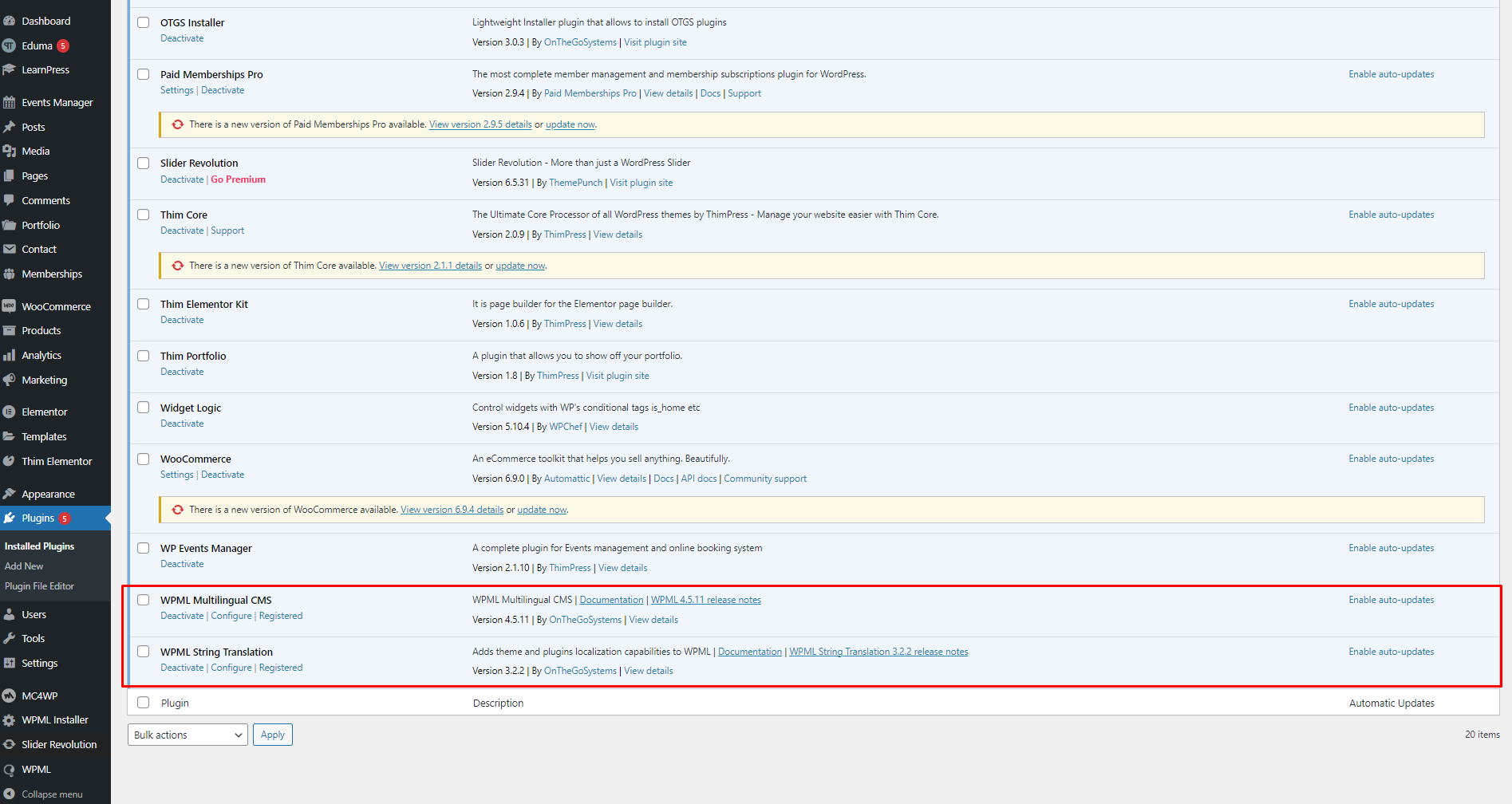
Eduma is fully compatible with WPML (WordPress Multilingual Plugin), allowing you to easily build a multilingual website. In particular, Eduma provides strong support for translating LearnPress content, including courses, lessons, quizzes, and related elements, ensuring that your e-learning website displays correctly across multiple languages.
This guide provides an overview of how to properly configure WPML and translate Eduma content in combination with LearnPress, helping to maintain course structure, ensure stable translations, and display content accurately in each language.
Installation
This documentation is for the WPML Add-on for LearnPress, which is designed to work with the Eduma theme. The WPML Add-on for LearnPress is integrated with Eduma, so you must install and activate the Eduma theme before using this add-on. You can refer to the instructions for downloading and activating the Eduma theme in the previous section of this documentation.
WPML add-on for LearnPress is integrated with the WPML plugin. To use this plugin, you need to install and activate The WordPress Multilingual Plugin – WPML. You can download it here: https://wpml.org/.
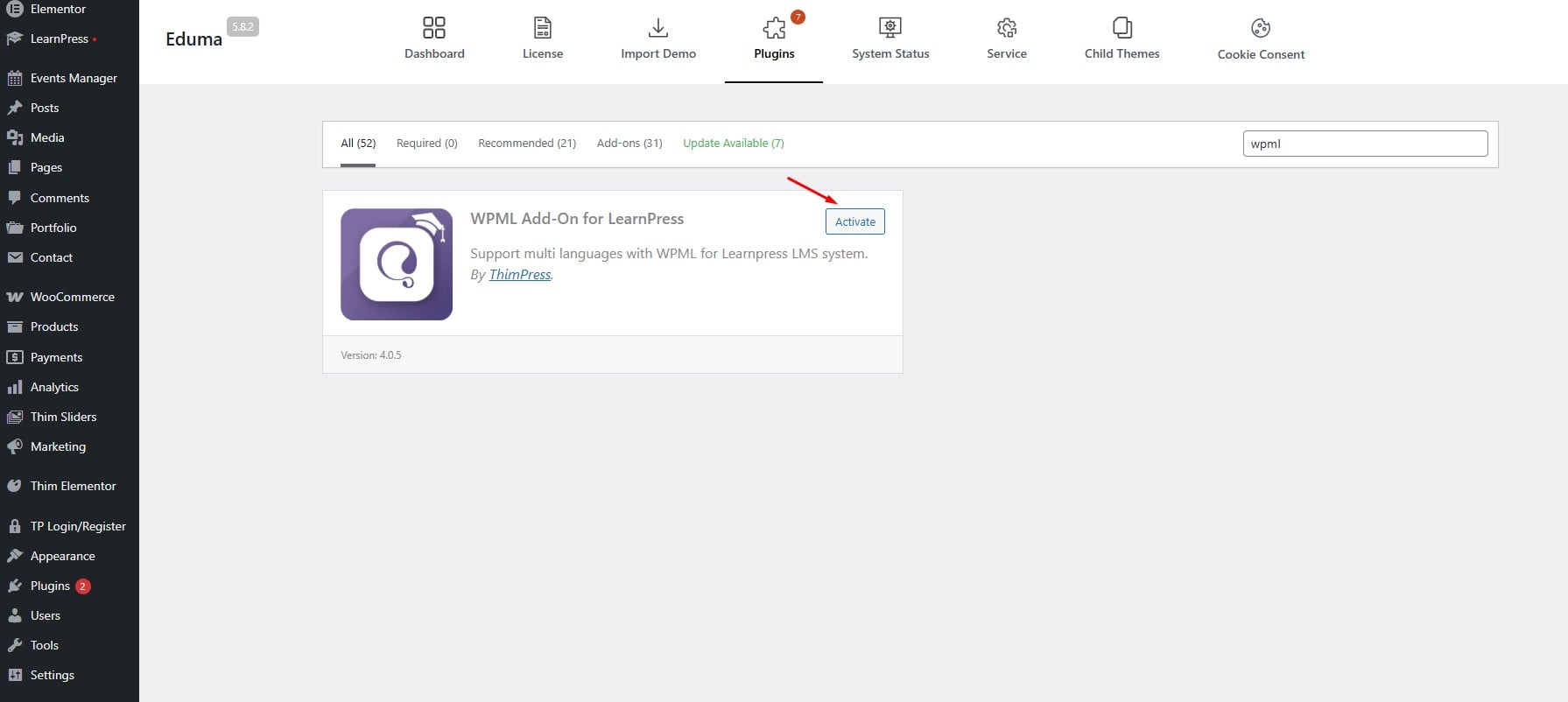
You can install the WPML add-on for LearnPress in ways:
Step 1: Visit Dashboard => Eduma => Plugin => Search ‘ WPML add-on for LearnPress’
Step 2: You choose to ‘ Install Now’ , and ‘then Active it’
Transtale Content On Pages And Courses
WPML allows you to translate regular pages and LearnPress course content on your Eduma website into multiple languages. To ensure accurate translations, it is recommended to use the WPML Translation Editor when translating courses, lessons, and quizzes.
For detailed instructions on translating LearnPress content with WPML, please refer to the following guide:
This guide will help you configure WPML correctly and ensure that translated pages and courses work smoothly across different languages.
Translate Widget With Thim Elementor Templates
- You can go to your Dashboard => Appearance => Widgets to add/edit widgets into sections, like Course Sidebar, All Courses, Sidebar, Toolbar, Menu Right, Footer Top, Footer, Footer Bottom, Sidebar Shop, Sidebar Courses, and Sidebar Events.
- For example: If it has a shortcode like the image below:
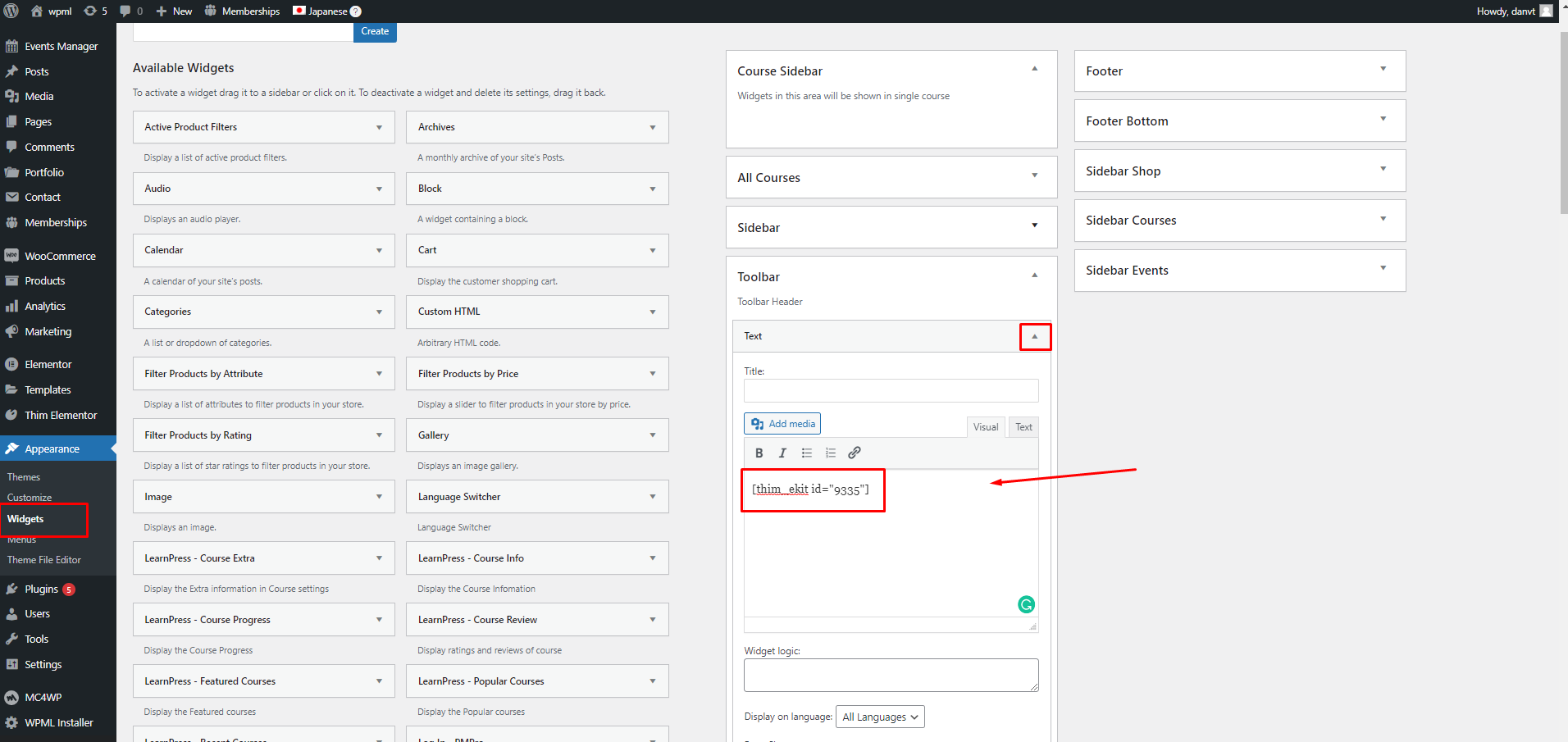
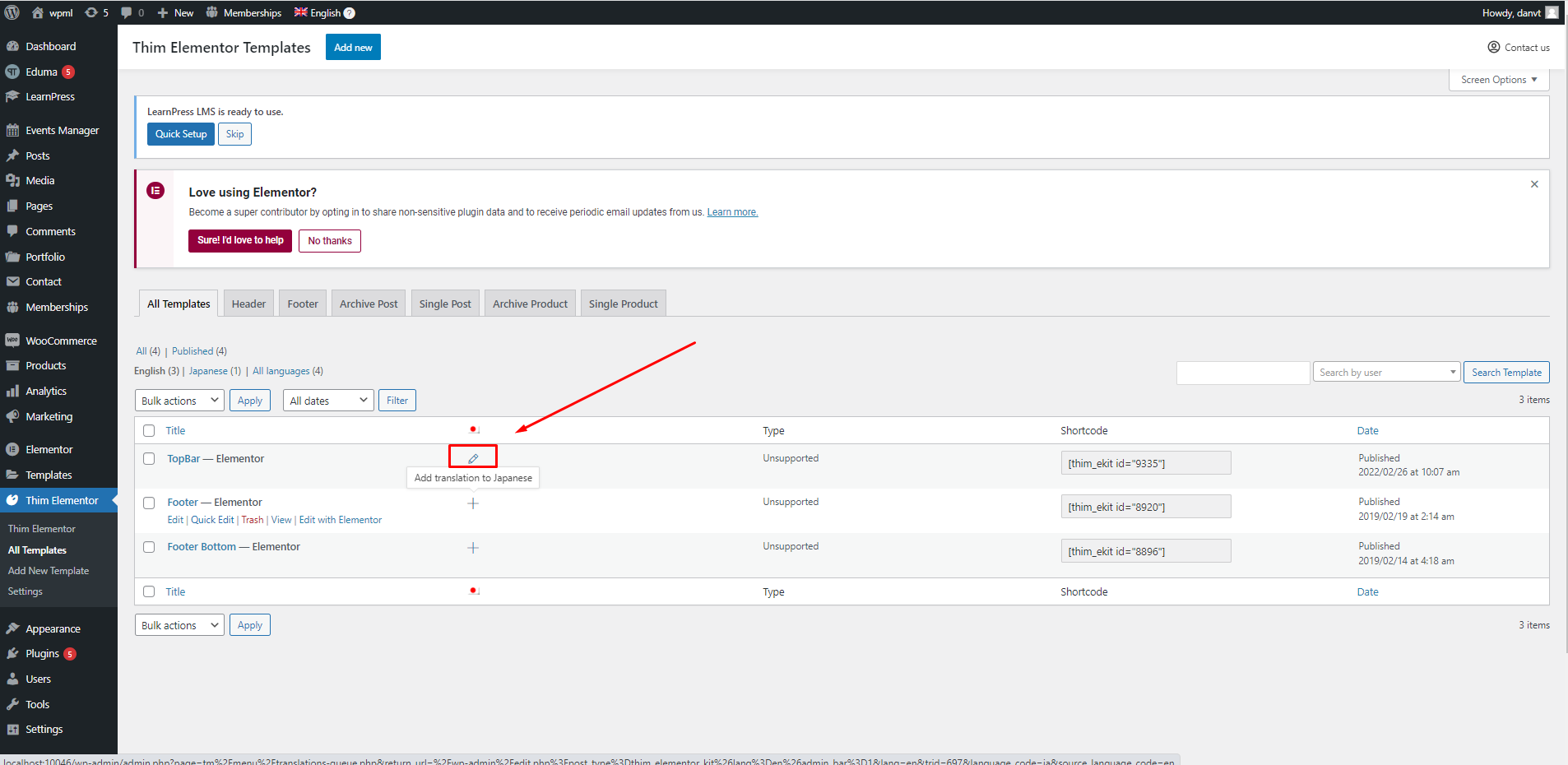
Then, you can go to Thim Elementor -> All Templates -> Add “Translating to Japanese”:
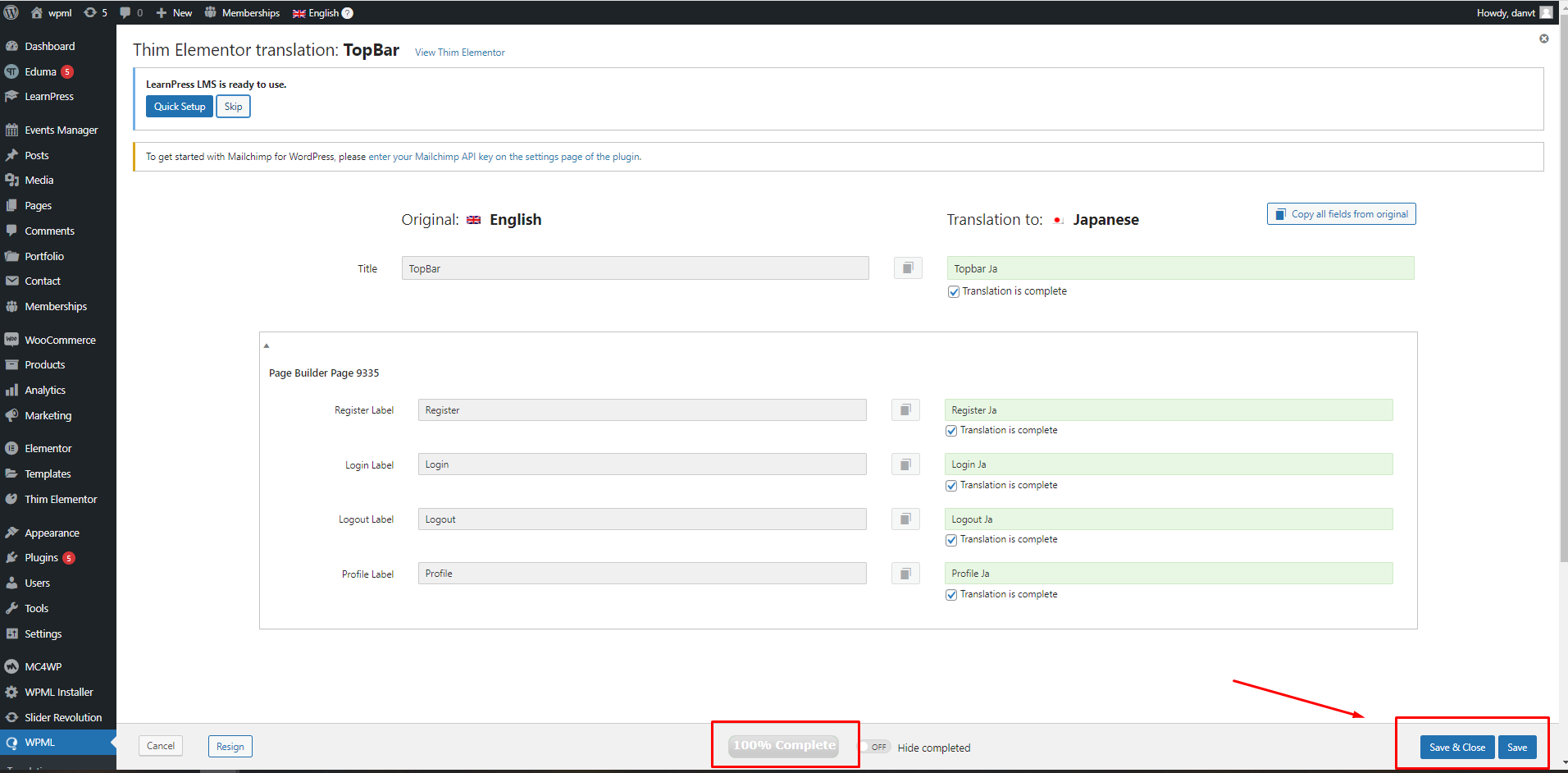
When the process is 100% complete, you need to click “Save & Close” to finish and review.
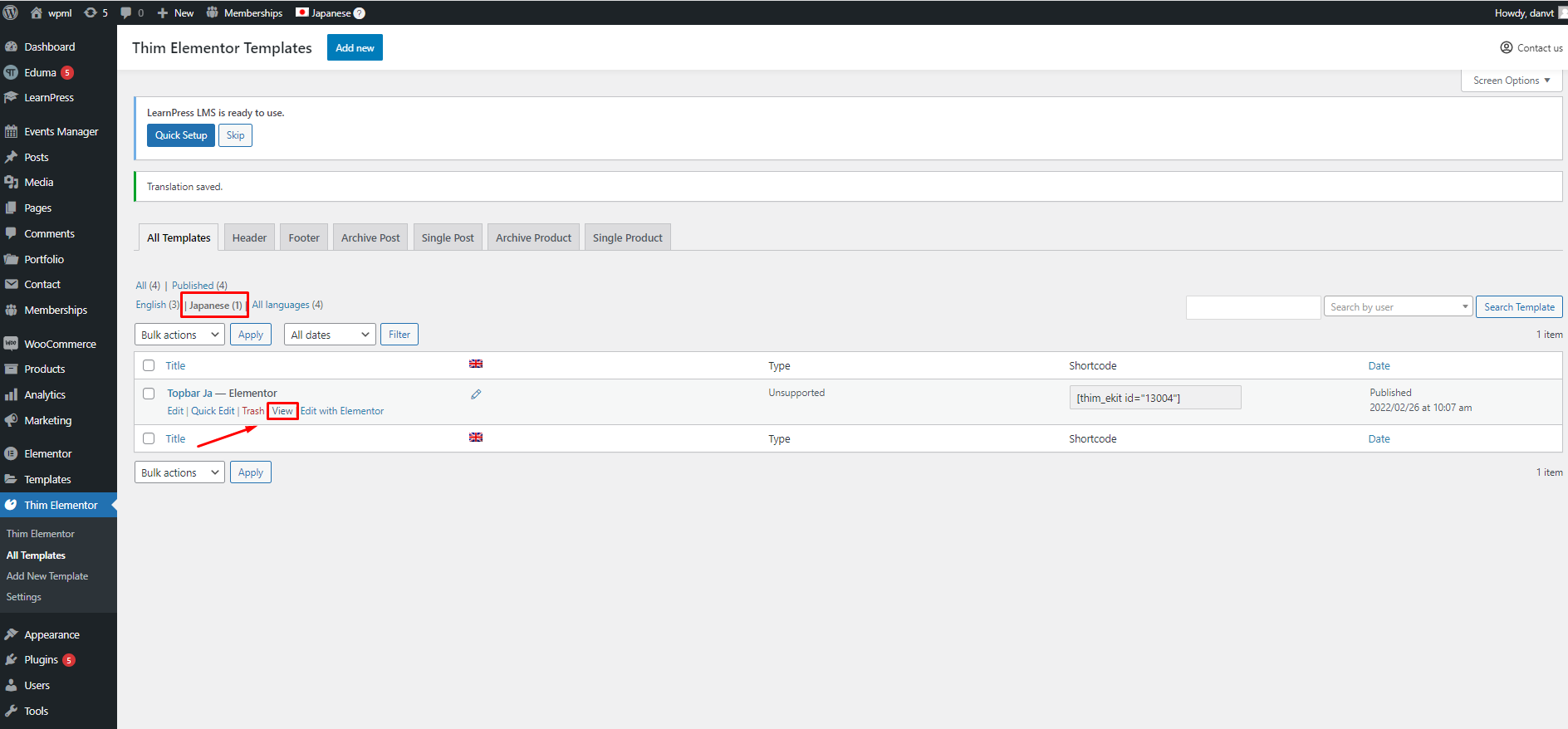
After selecting “Save & Close”, the site will return to the “All templates” page. In the Backend, you can click “View” to view the template you have just translated.
Translate Widget With Elementor
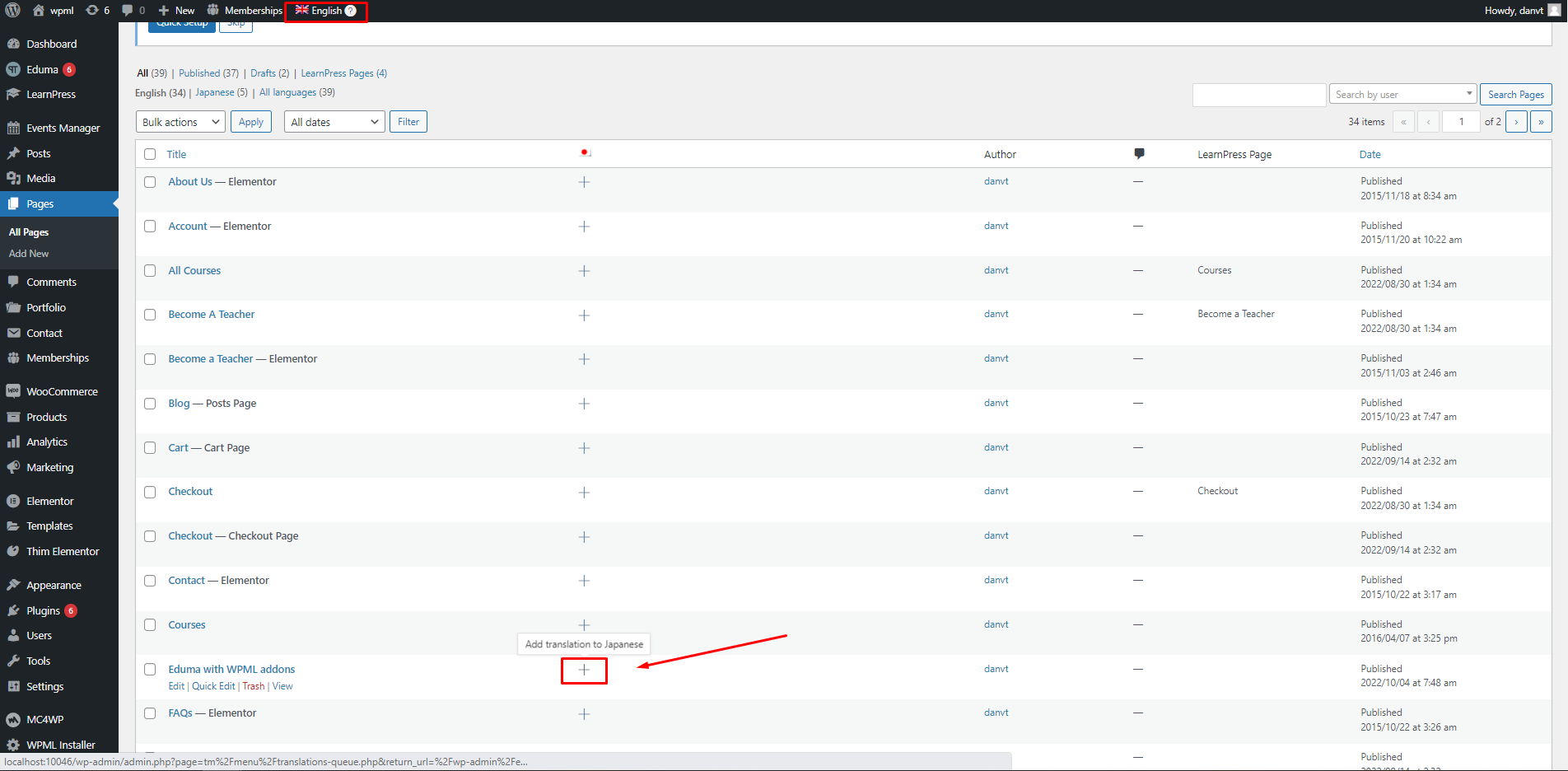
You can translate widgets added from Eduma’s Elementor. Please go to Dashboard => Page (You can choose an existing page or create a new page) => Add translation to Japanese:
When the process is 100% complete, you need to click “Save & Close” to finish and review.
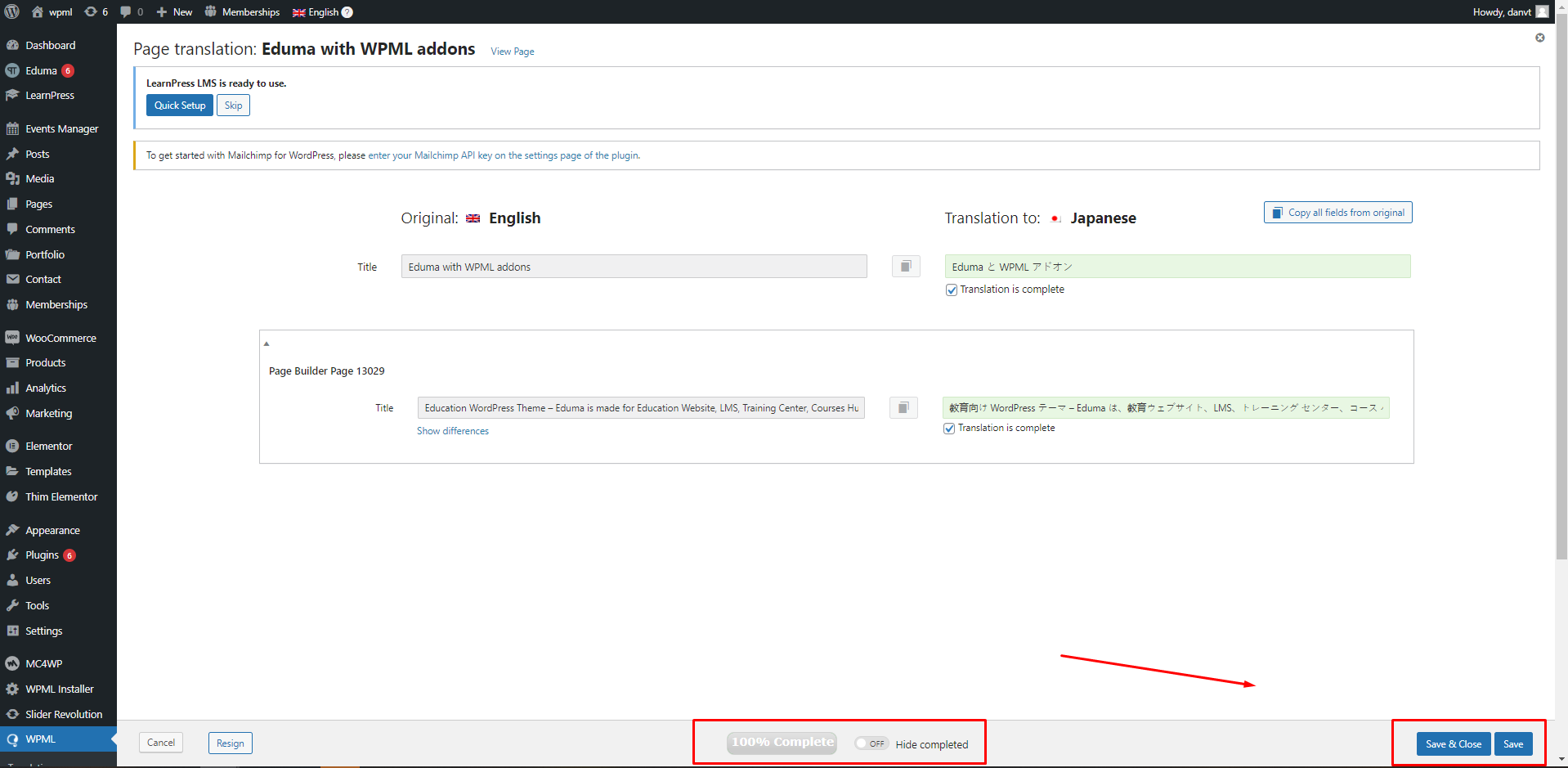
After selecting “Save & Close”, the site will return to the All page. In the Backend, you can click “View” to view the template you have just translated.
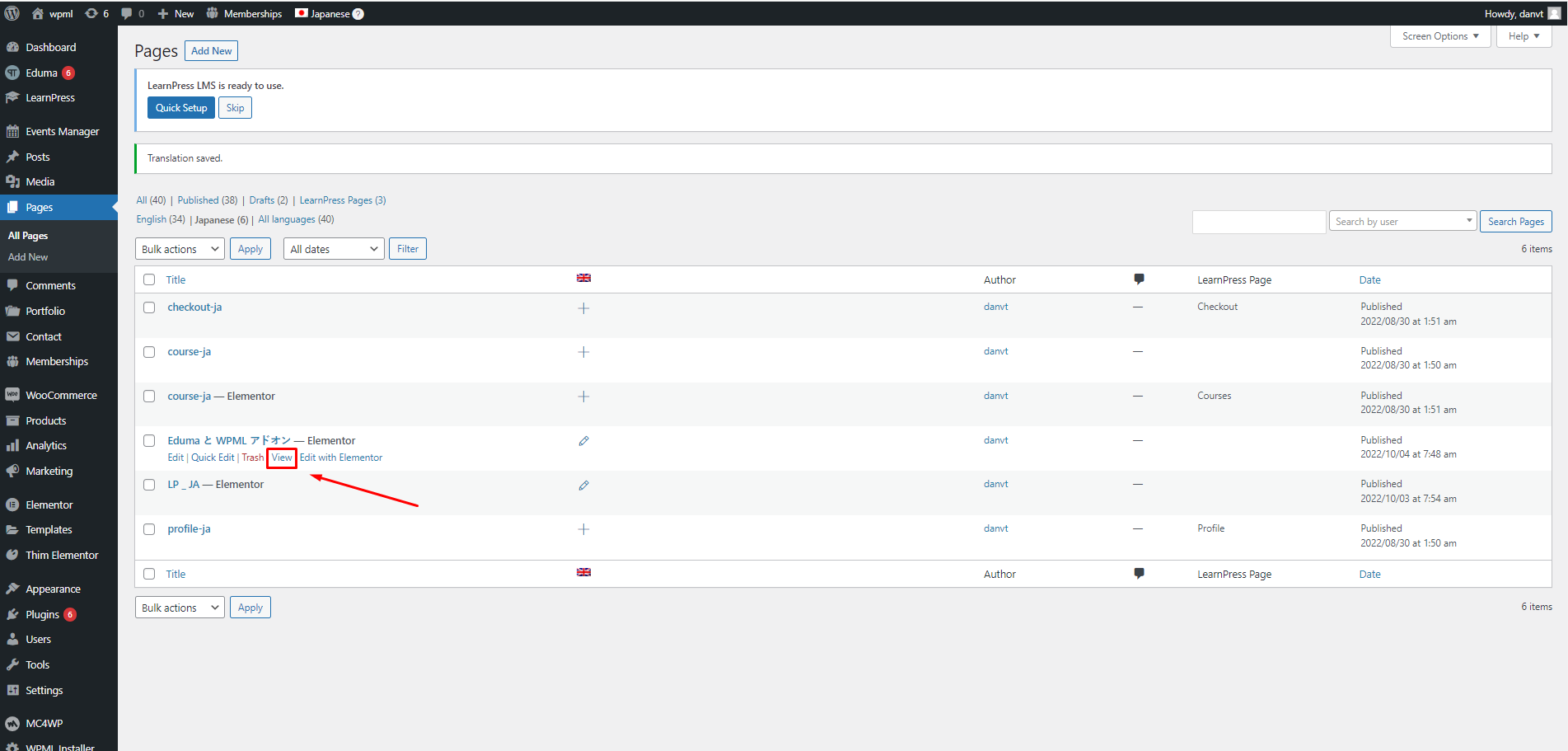
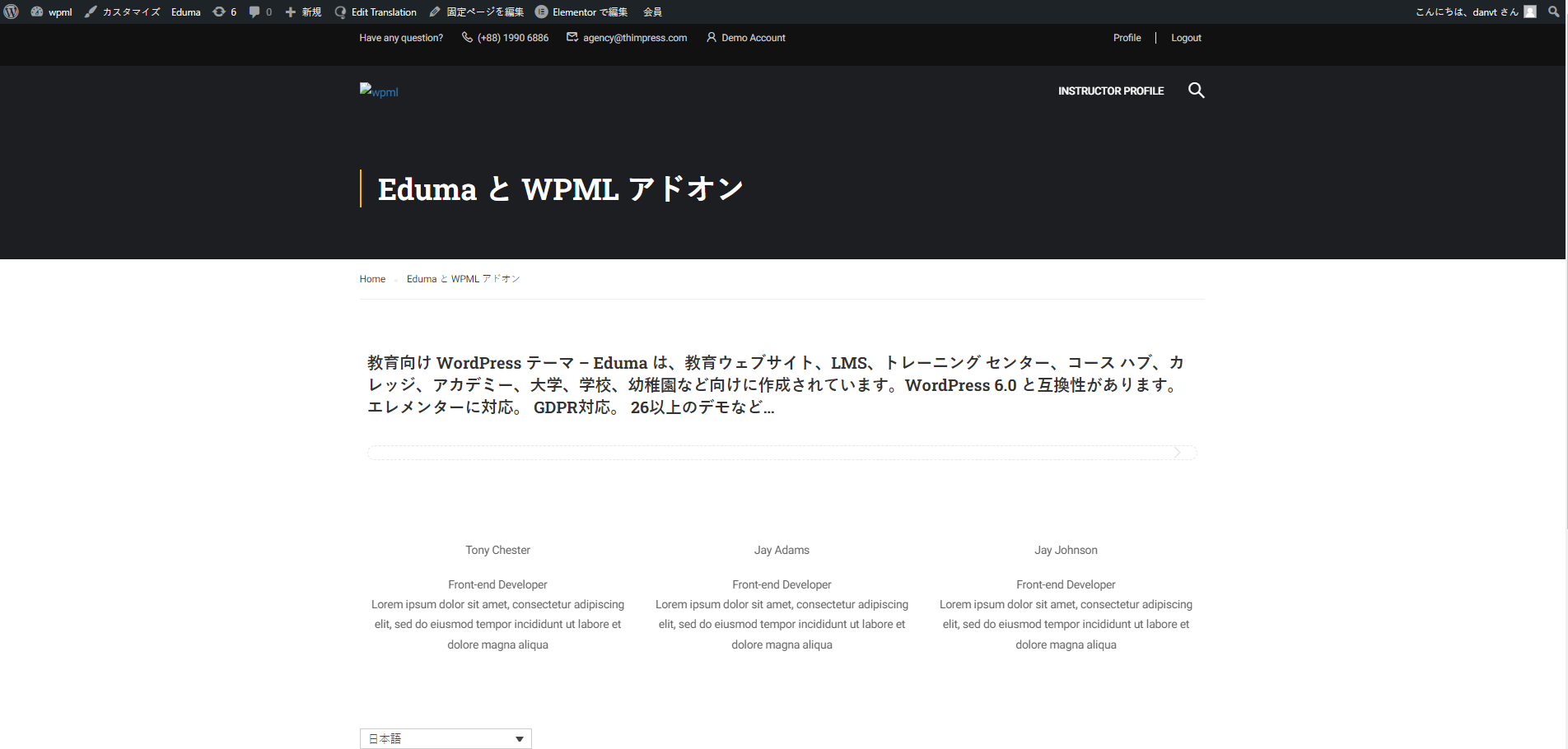
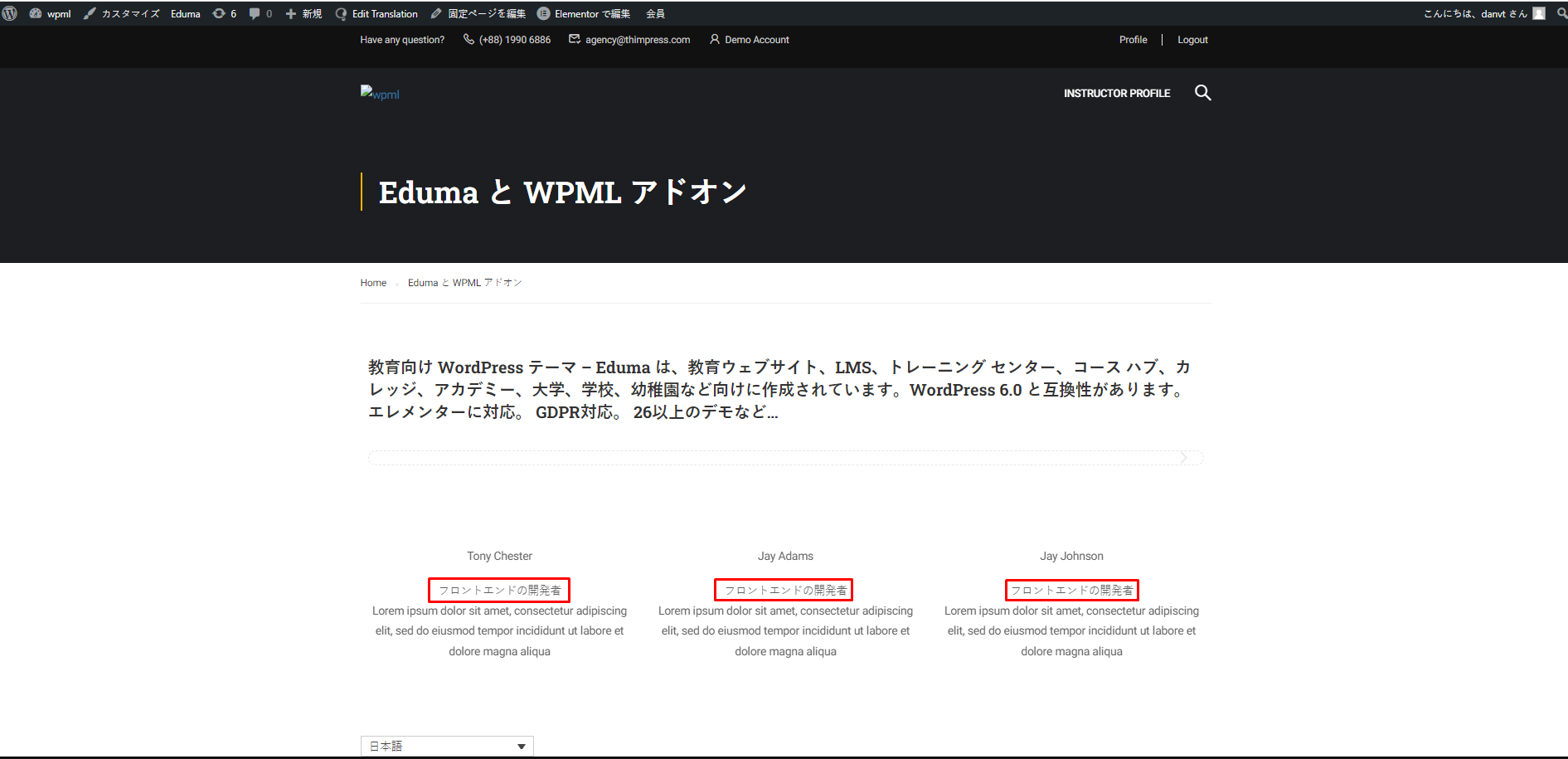
Here, there is still some text that is not automatically translated. There are 2 ways for you to translate these texts.
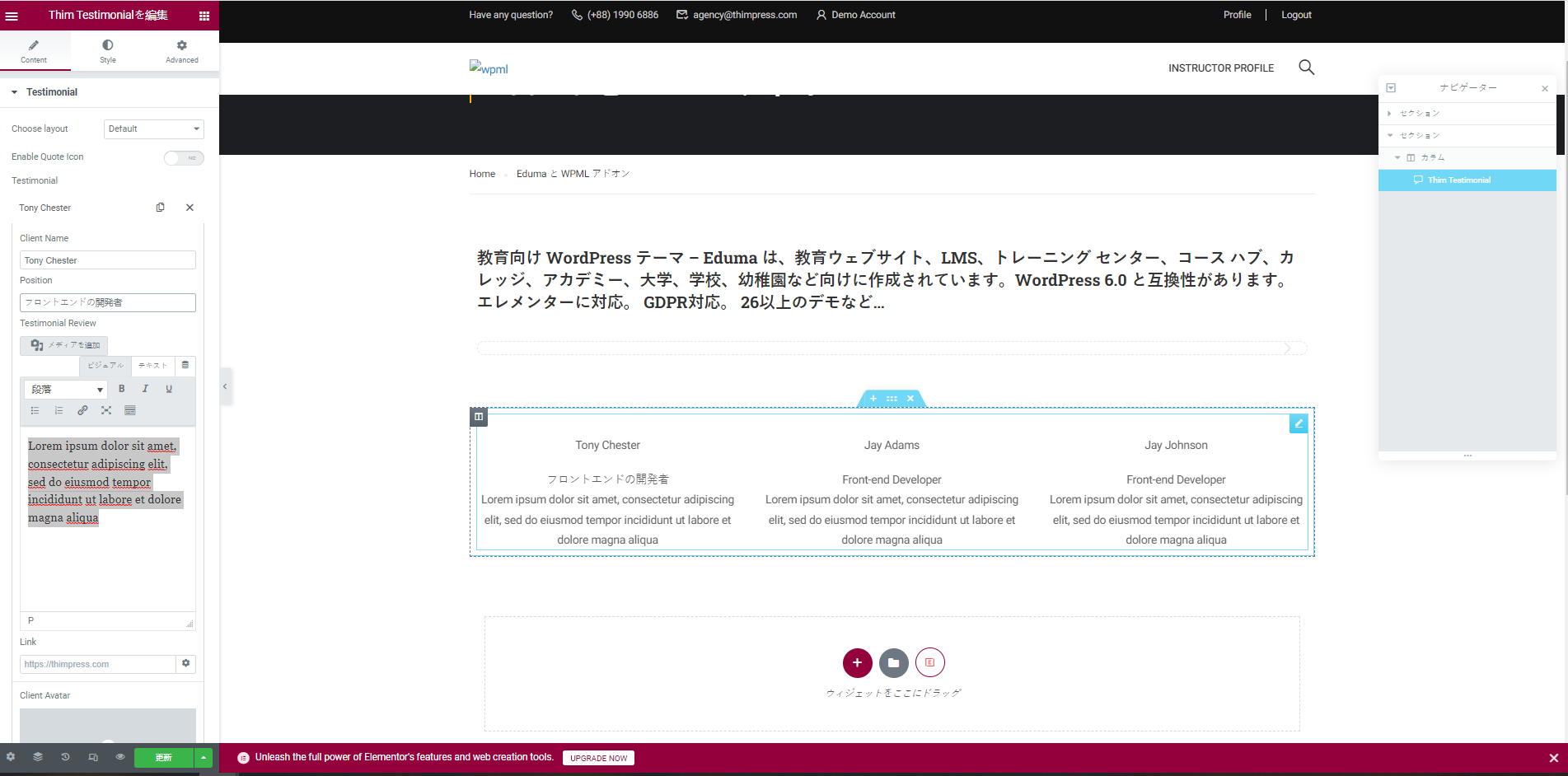
Ways 1: Please go to Dashboard => Page => Edit with Elementor
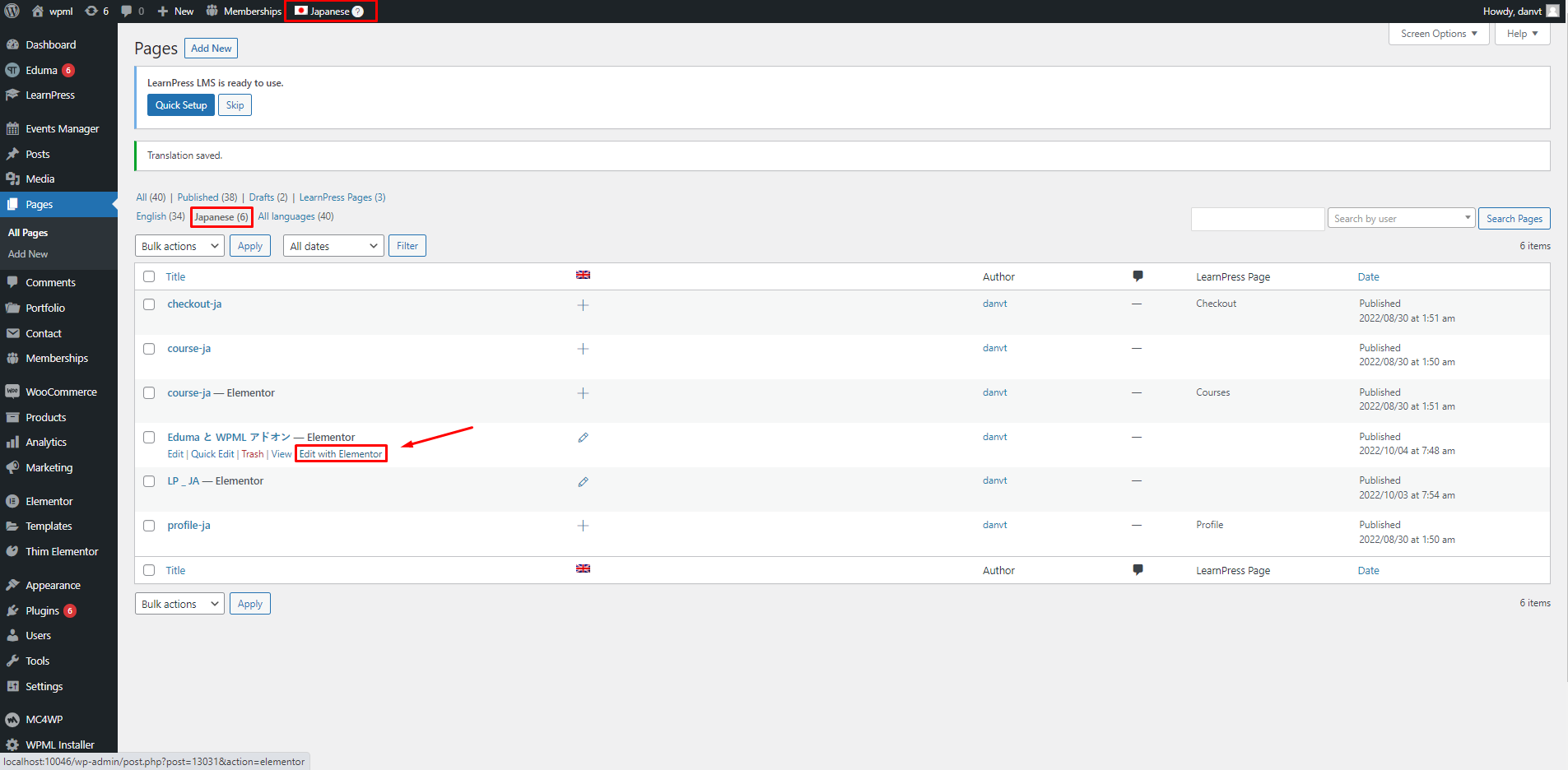
Then, click the block you want to edit and edit it on the Elementor editing panel.
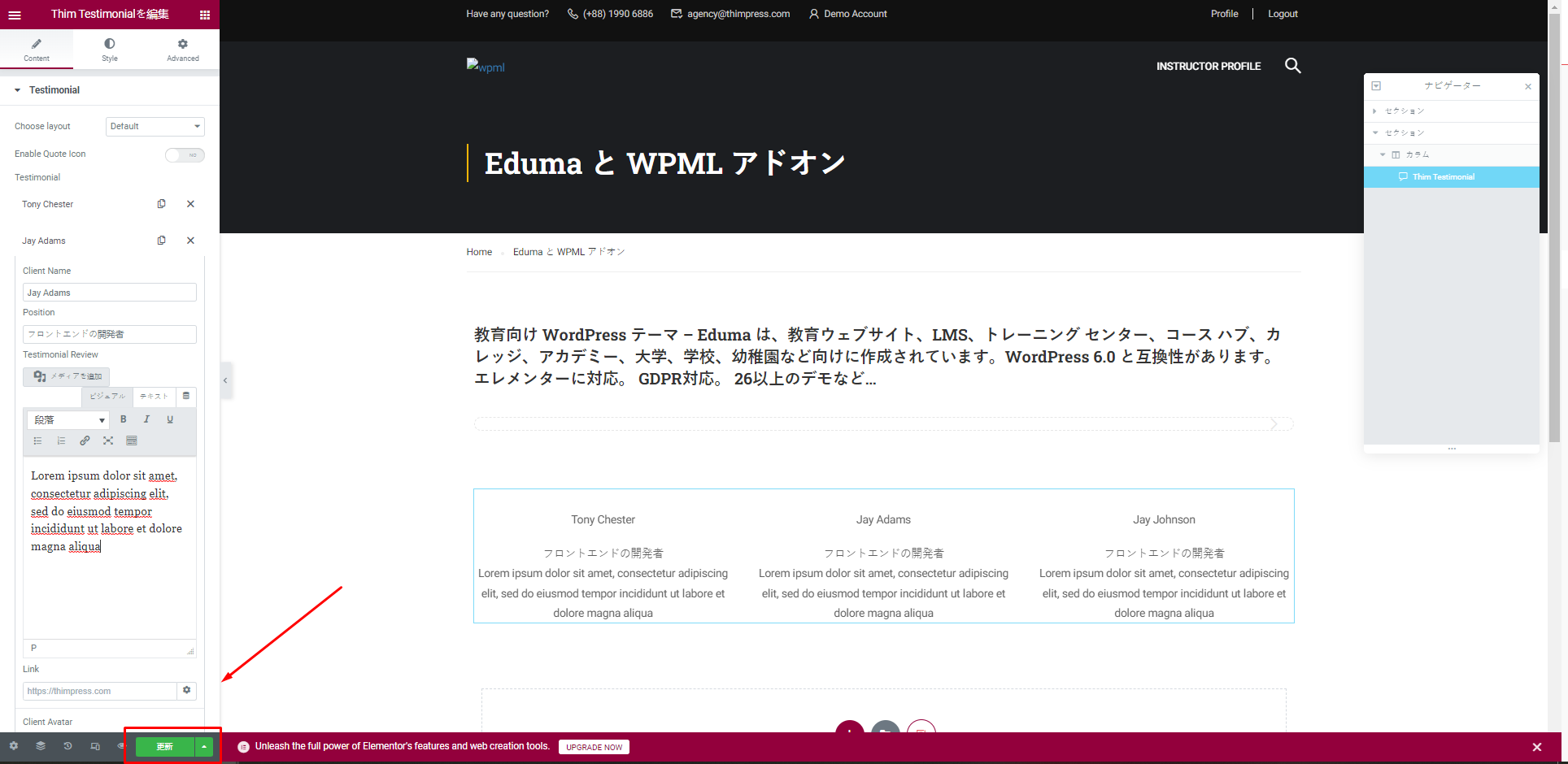
Click “Update” to save the action you just edited.
Way 2, you can translate with Translations of WPML. Please go to Dashboard => WPML => Translations => Page => Edit
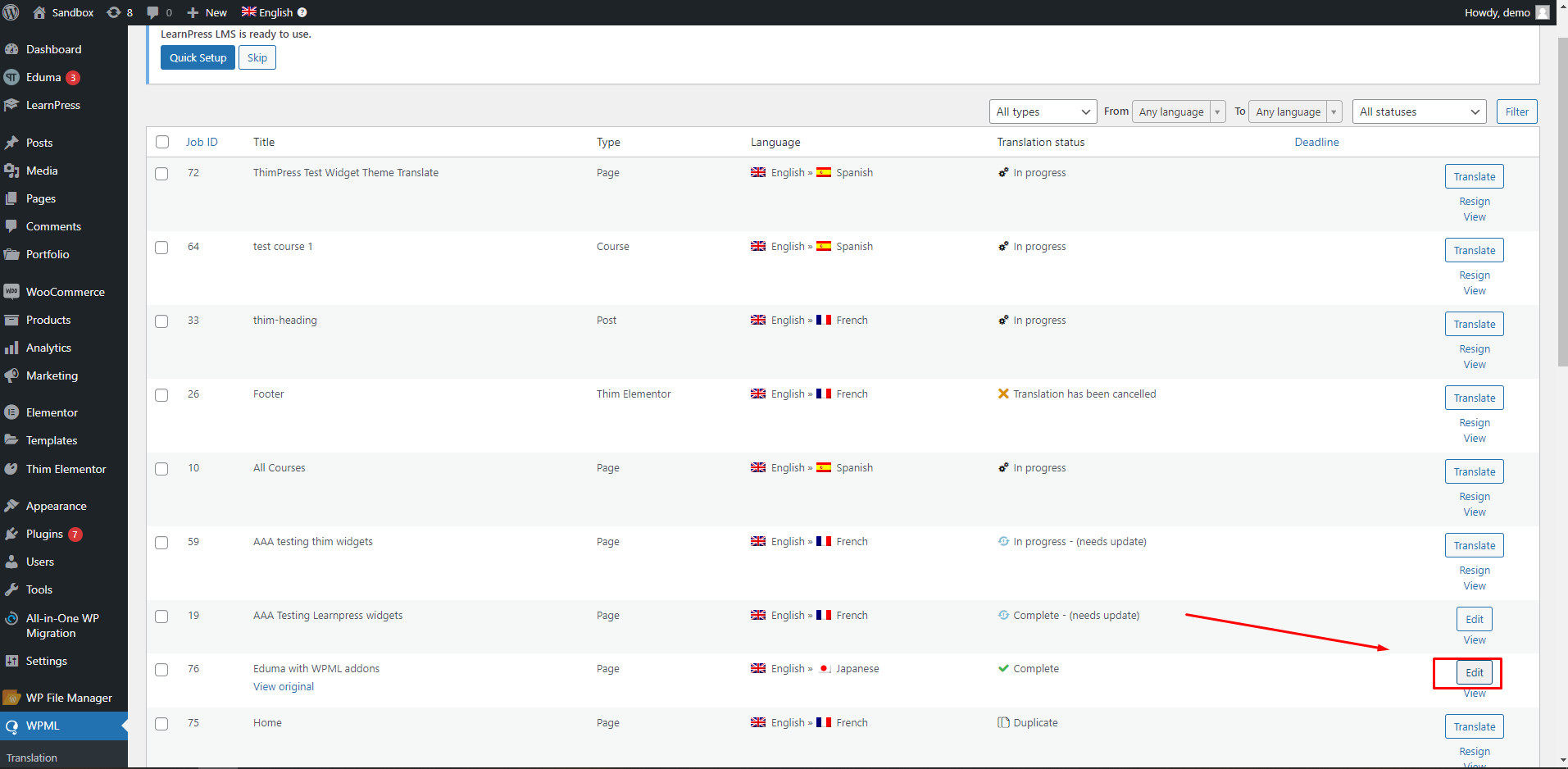
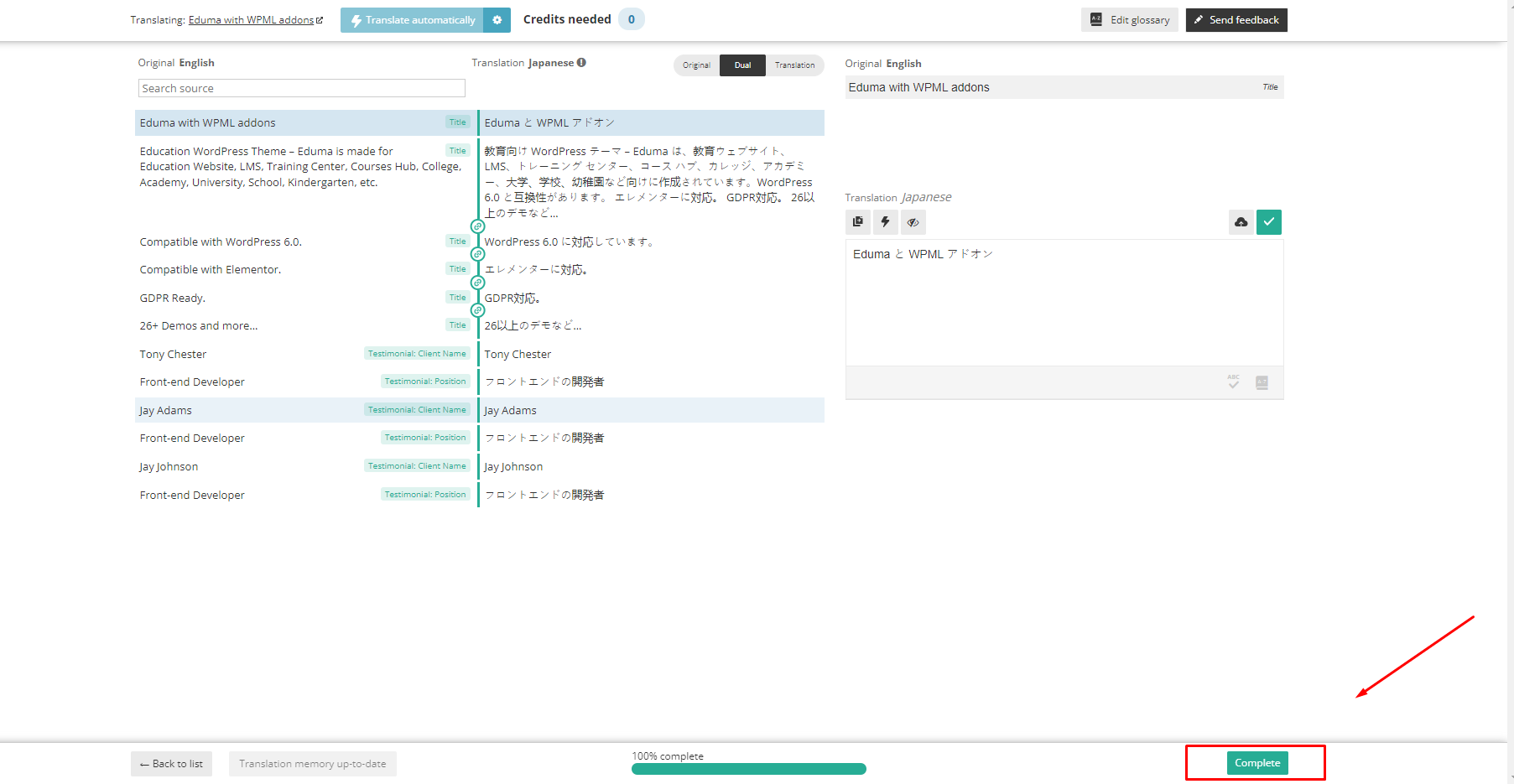
When the process is 100% complete, you need to click “Complete” to finish and review.