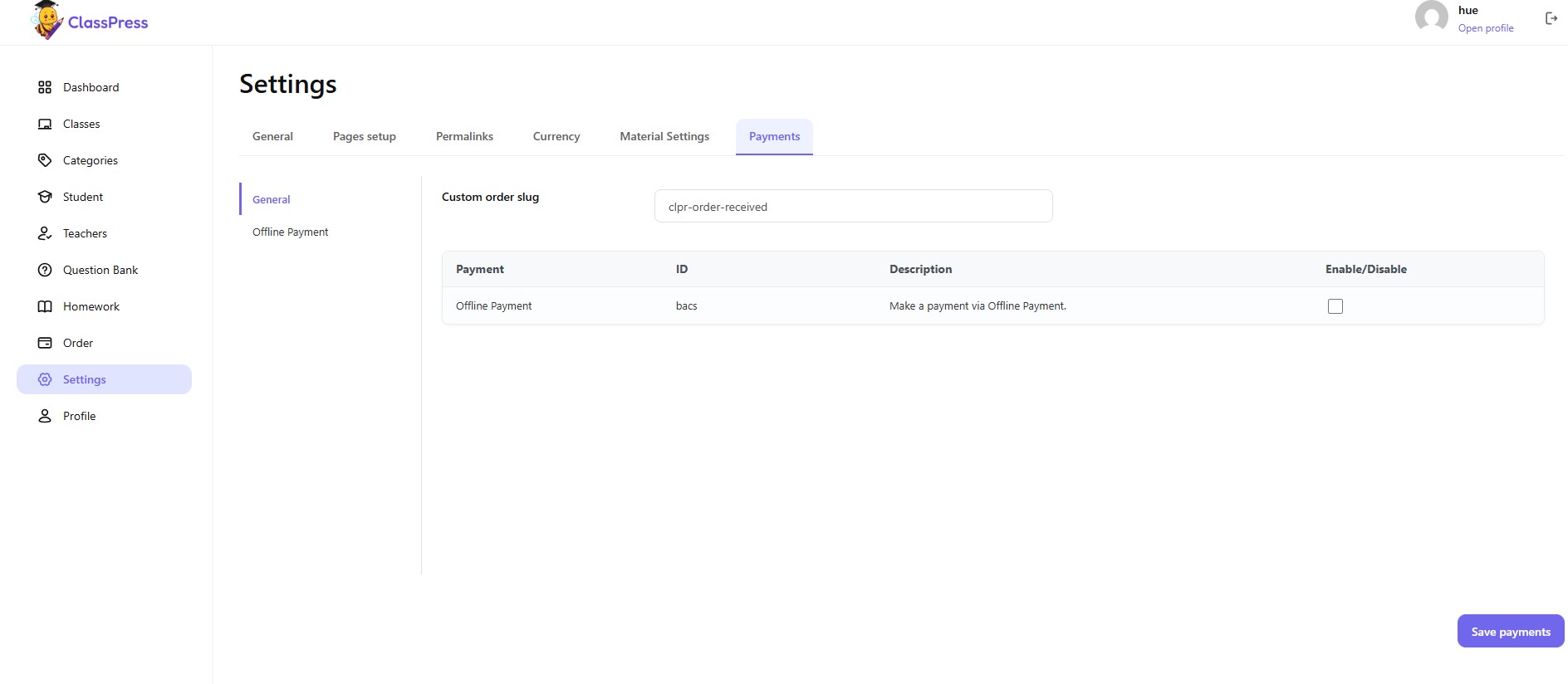
The Settings page allows you to configure the general behavior of ClassPress, including default scores, page assignments, URL structure, currency options, material upload settings, and payment methods.
1.General Settings
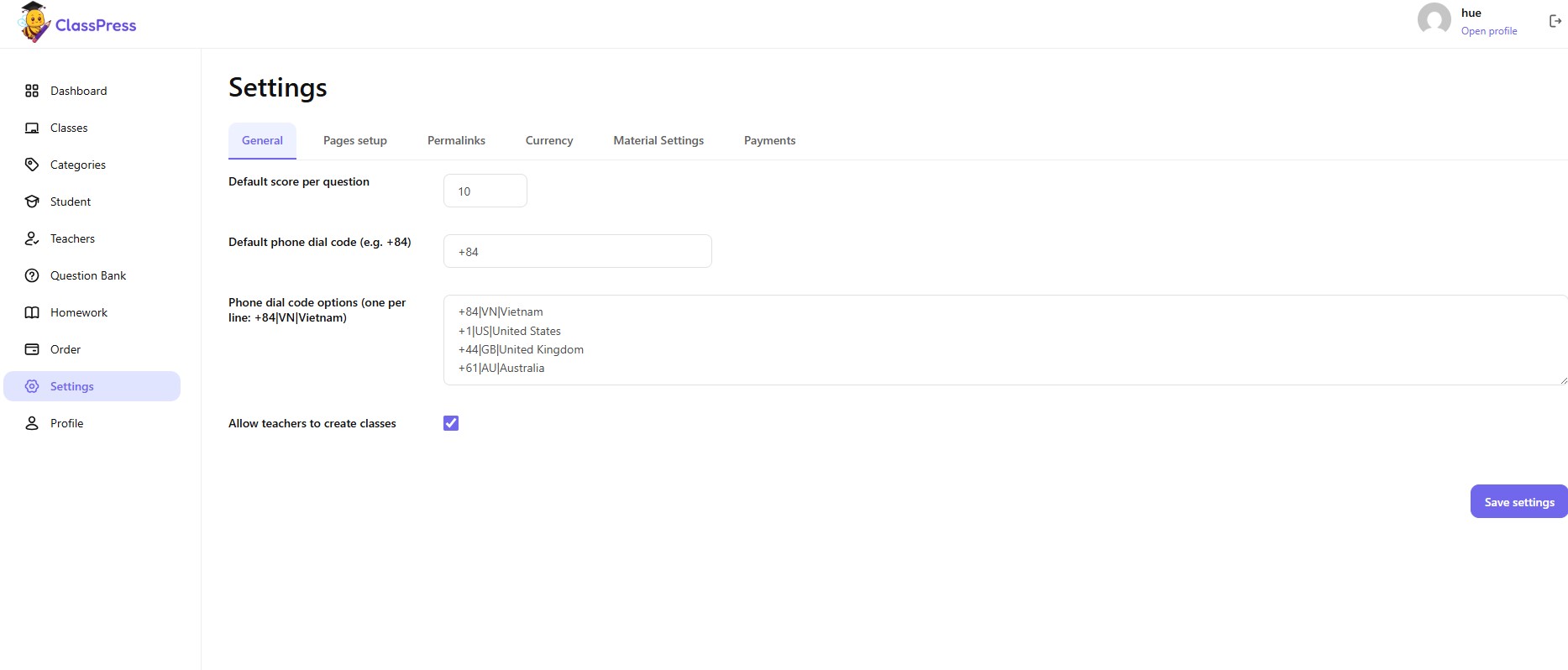
To configure the general settings:
- Stay on the General tab.
- Update the available options as needed.
- Click Save settings to apply your changes.
Available options
- Default score per question – Sets the default score assigned to each newly created question.
- Default phone dial code – Defines the default country calling code used throughout the system.
- Phone dial code options – Add or edit the list of available country dial codes. Enter one option per line using the following format
- Allow teachers to create classes – Enable this option to allow teacher accounts to create and manage their own classes.
2.Pages Setup
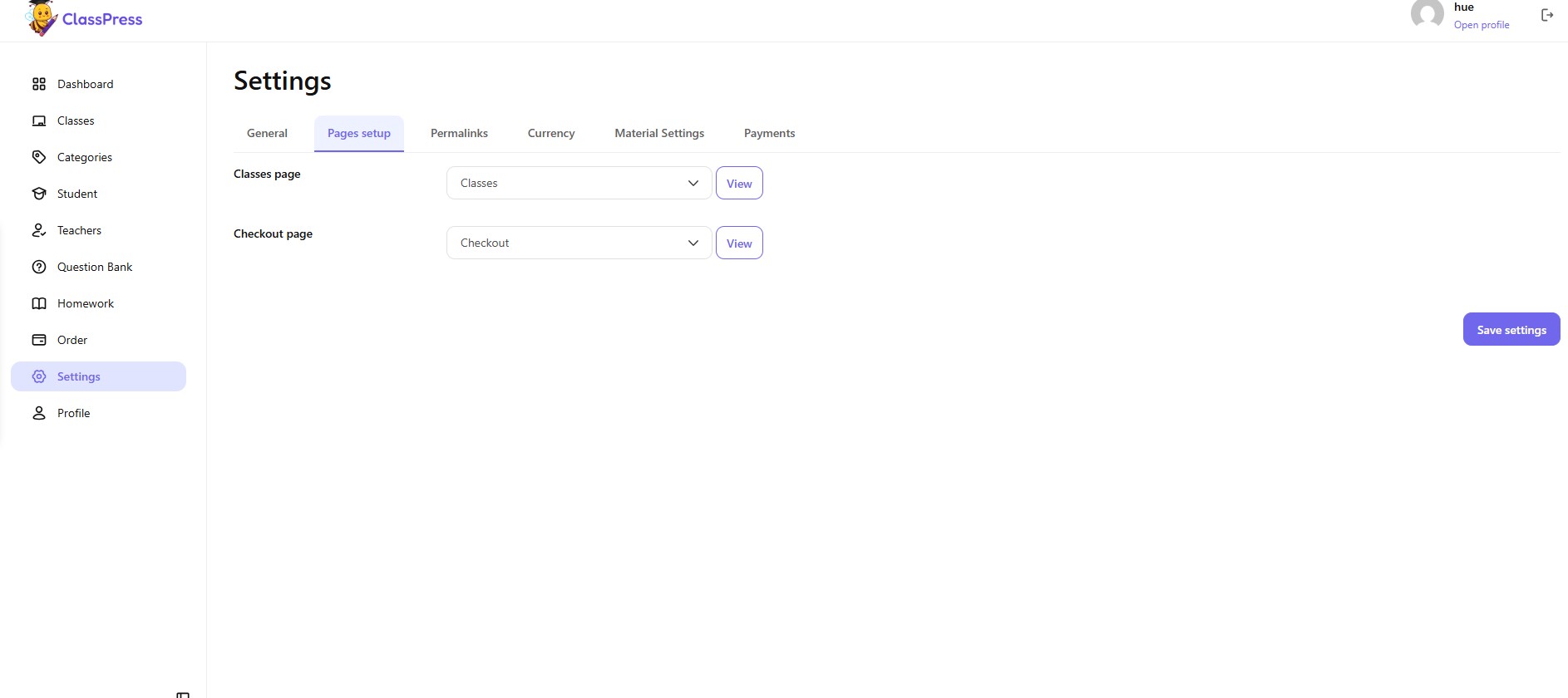
The Pages setup tab allows you to assign the pages used by ClassPress.
To configure page assignments:
- Navigate to Settings → Pages setup.
- Select the page for each required item.
- Click Save settings.
Available options
- Classes page – Select the page used to display the class listing.
- Checkout page – Select the page used for the checkout process.
The View button lets you quickly open the selected page on the frontend.
3.Permalinks
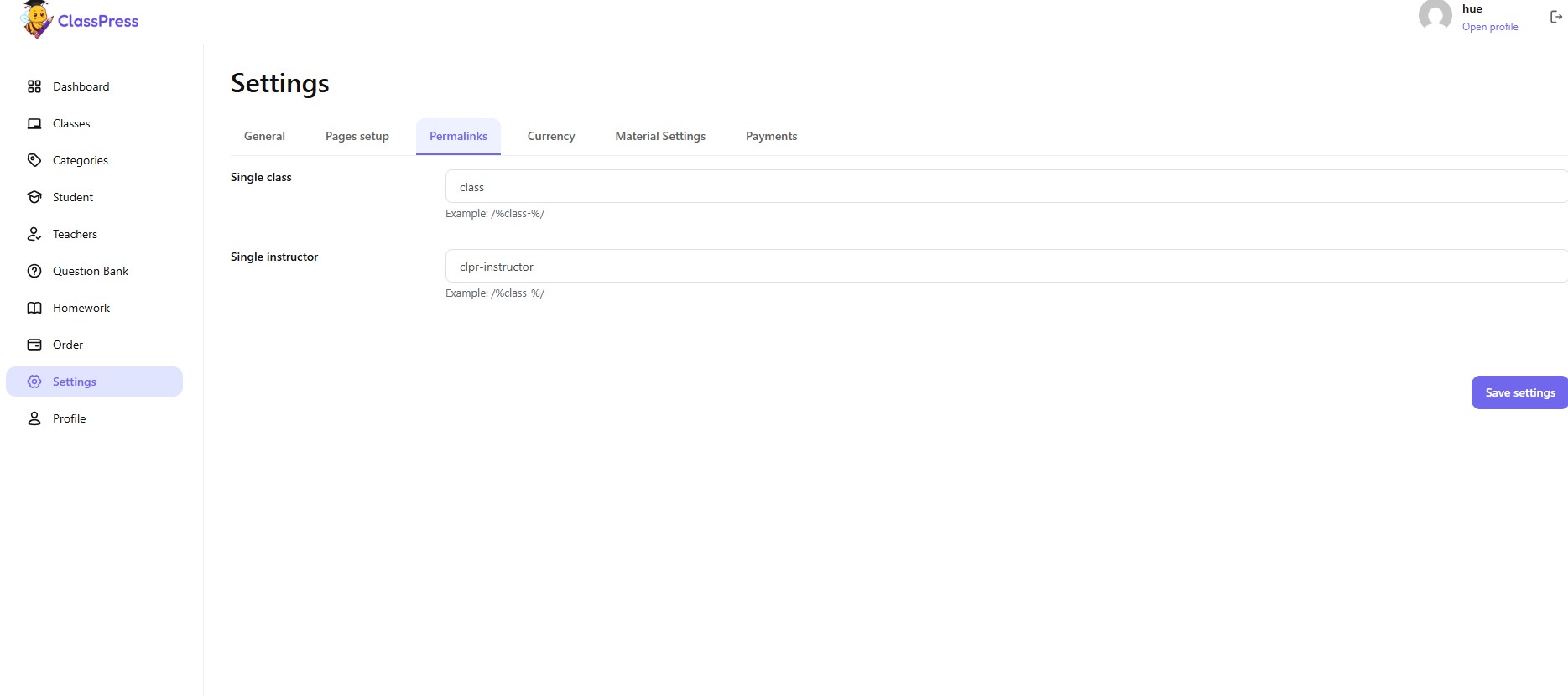
The Permalinks tab allows you to customize the URL structure used by ClassPress.
To configure permalinks:
- Navigate to Settings → Permalinks.
- Enter your preferred URL slugs.
- Click Save settings.
Available options
- Single class – Defines the URL slug for individual class pages.
- Single instructor – Defines the URL slug for instructor profile pages.
Changing permalink settings may require refreshing your WordPress permalinks by visiting Settings → Permalinks in the WordPress dashboard and clicking Save Changes.
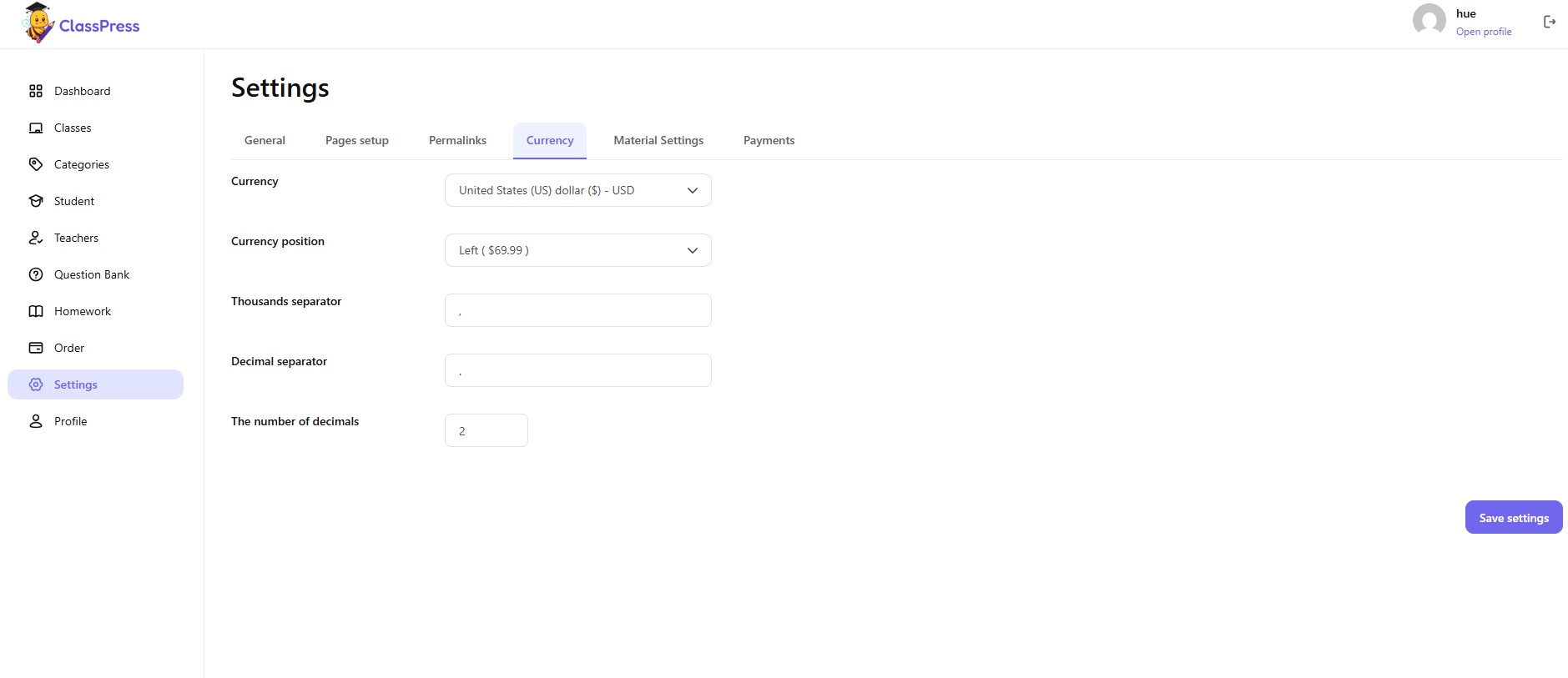
4.Currency Settings
The Currency tab lets you configure how prices are displayed throughout the website.
To configure currency settings:
- Navigate to Settings → Currency.
- Update the desired options.
- Click Save settings.
Available options
- Currency – Select the default currency.
- Currency position – Choose where the currency symbol appears (before or after the amount).
- Thousands separator – Character used to separate thousands.
- Decimal separator – Character used to separate decimal values.
- The number of decimals – Defines how many decimal places are displayed.
5.Material Settings
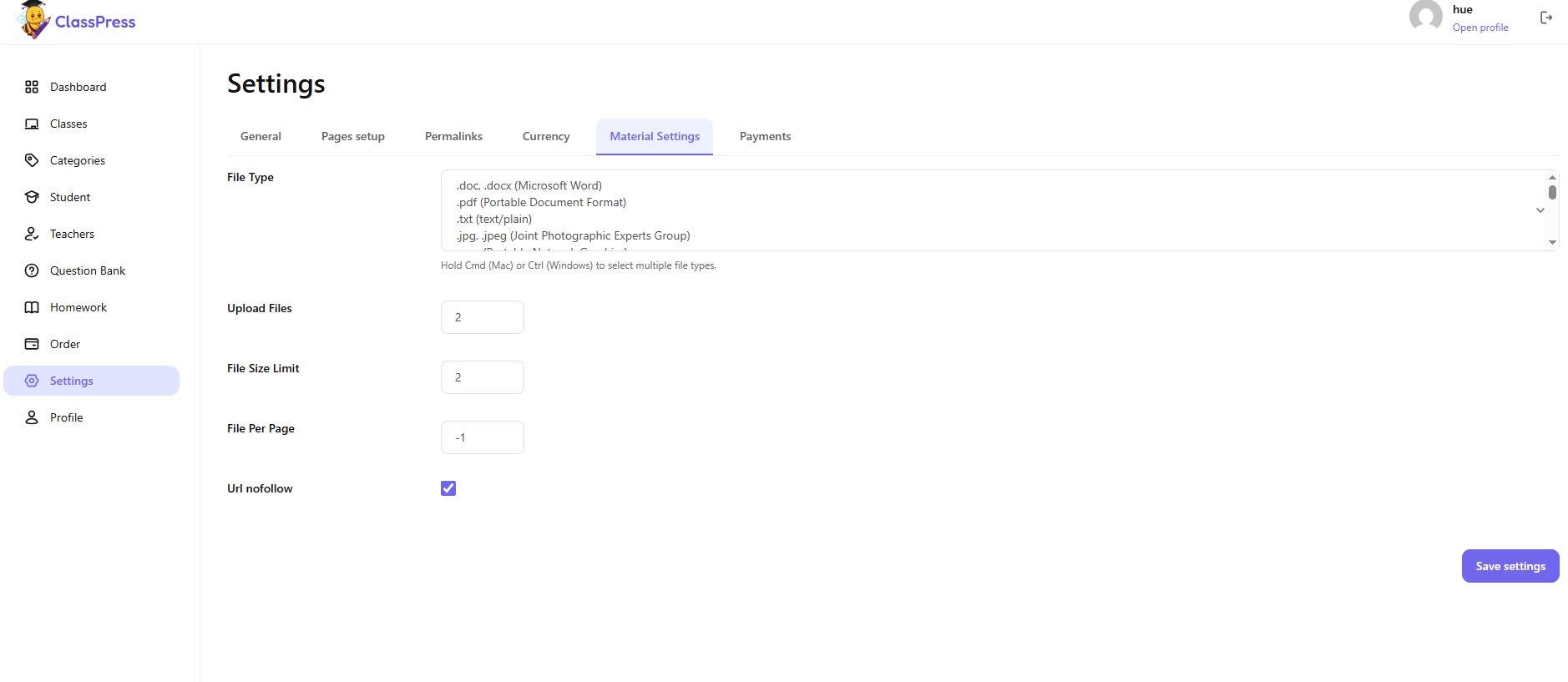
The Material Settings tab controls the upload restrictions for learning materials.
To configure material settings:
- Navigate to Settings → Material Settings.
- Configure the upload options.
- Click Save settings.
Available options
- File Type – Select the file formats users are allowed to upload.
- Upload Files – Set the maximum number of files allowed in a single upload.
- File Size Limit – Specify the maximum allowed file size.
- File Per Page – Define how many files are displayed per page.
- Use -1 to display all files.
- URL nofollow – Adds the
rel="nofollow"attribute to material download links when enabled.
6.Payment Settings
The Payments tab allows you to configure the available payment methods.
To configure payment settings:
- Navigate to Settings → Payments.
- Configure the available payment gateways.
- Click Save payments.
General
- Custom order slug – Defines the URL slug used for the order received page.
Payment Methods
The payment table displays all available payment gateways.
For each payment method, you can:
- View the payment name.
- View the payment ID.
- View the payment description.
- Enable or disable the payment method by checking the Enable/Disable option.
Currently, ClassPress includes Offline Payment, which allows administrators to manually verify and approve payments after receiving them.