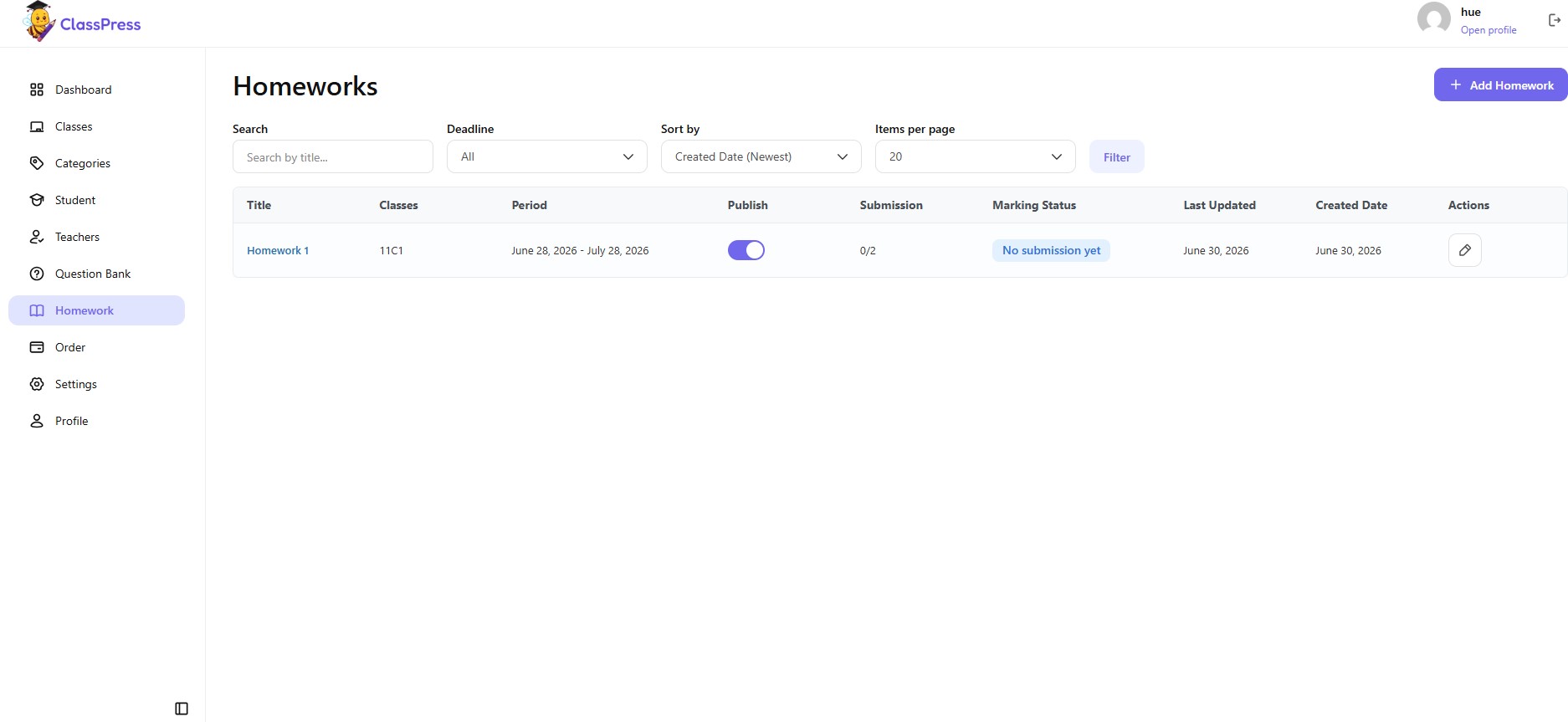
The Homework tab allows administrators and teachers to create, assign, and manage homework for a specific class.
The homework list displays all assignments created for the selected class.
If no homework has been created yet, ClassPress displays a No Homeworks Found message.
Creating a New Homework
To create a homework assignment:
- Navigate to the Homework tab.
- Click Add Homework.
- Complete Step 1 – Information.
- Save the homework.
- Continue to Step 2 – Content to add questions.
- Click Done when the homework is complete.
Creating homework is divided into two steps to make the setup process easier.
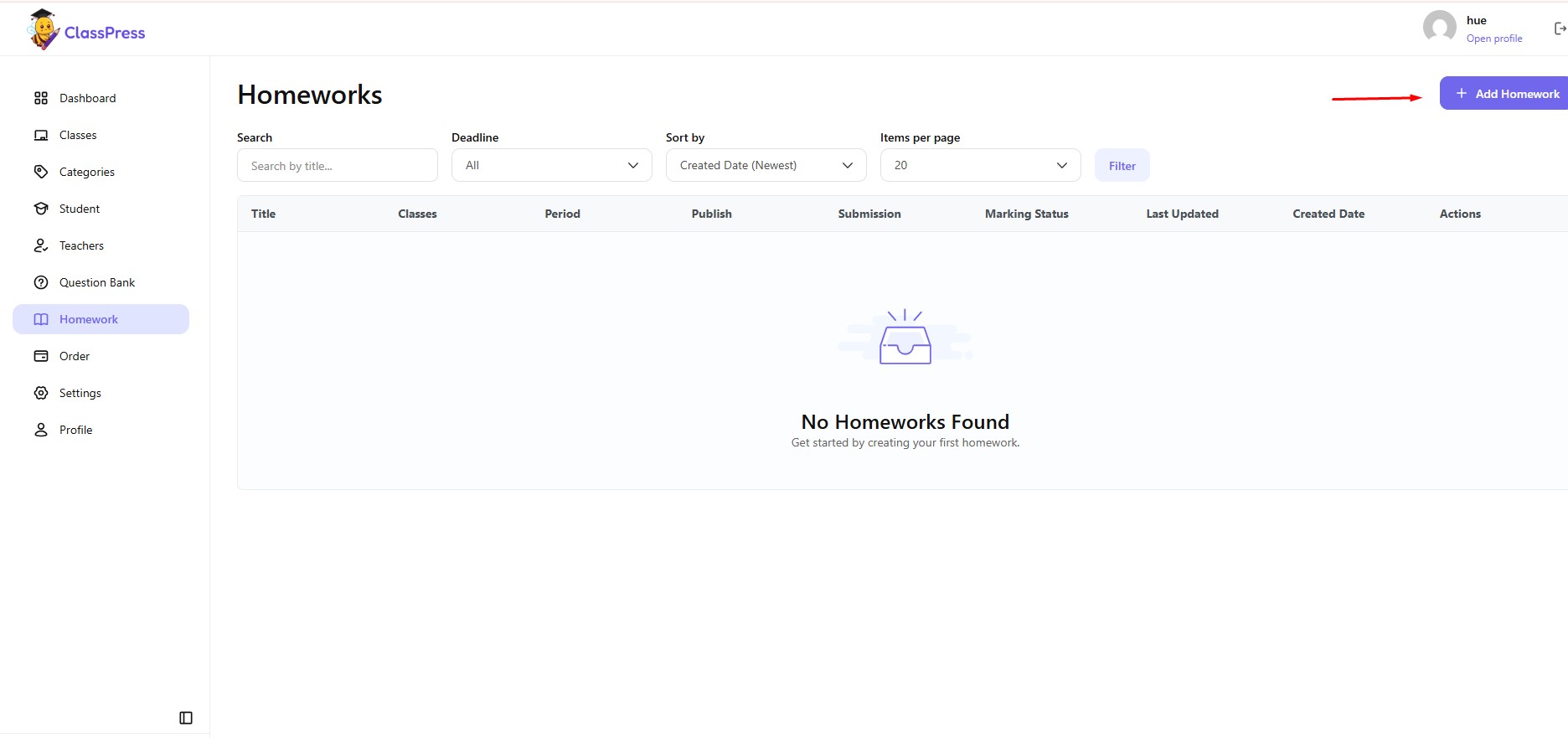
Step 1 – Information
The first step is used to configure the homework information and schedule.
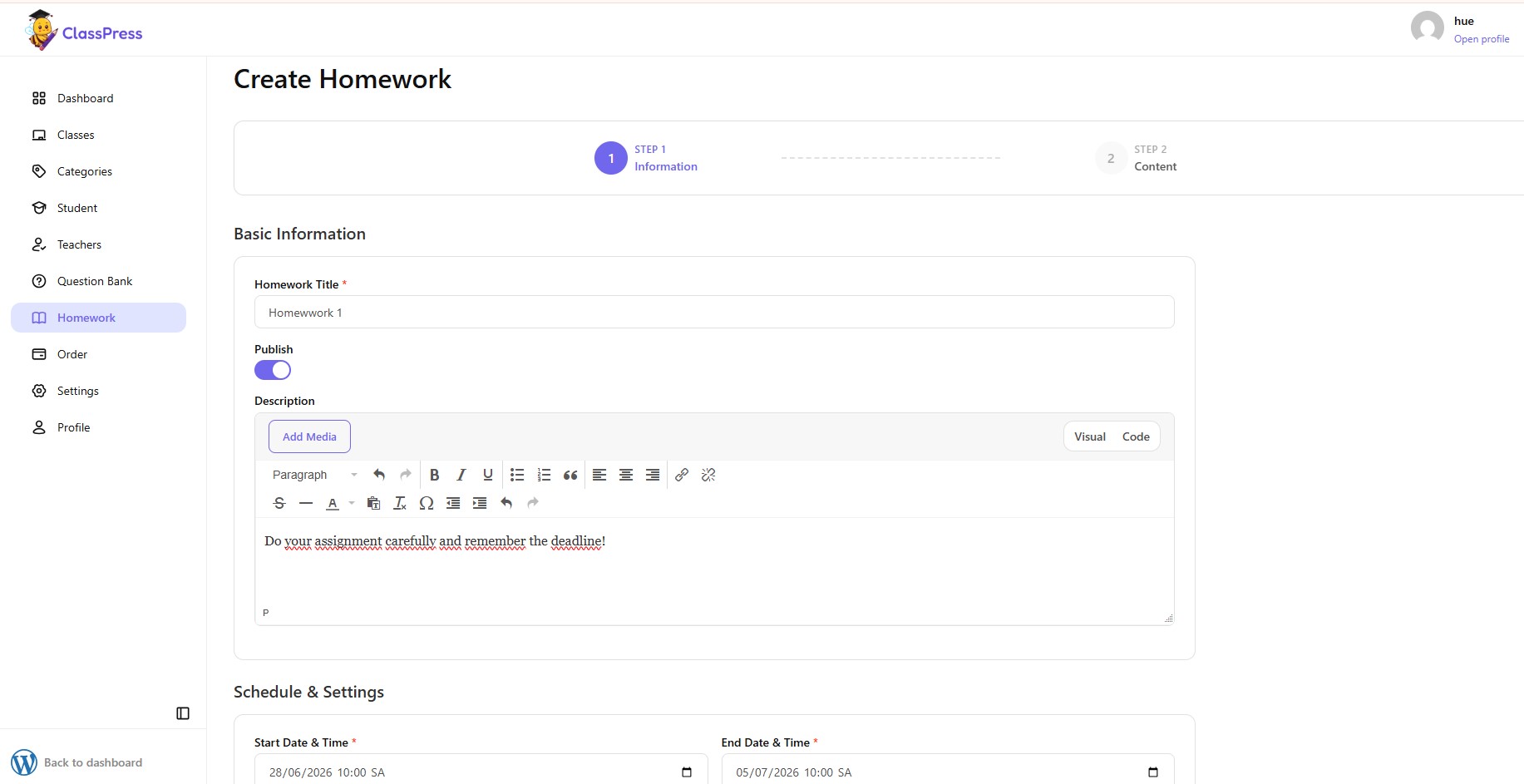
Save Step 1
After completing all required information,” Save and Next” the homework.
Once saved successfully, ClassPress automatically allows you to continue to Step 2 – Content.
Step 2 – Content
The Content step is where you create the questions that students will answer.
At this stage, the homework has already been created, and you can begin building the assignment by adding questions.
To add a new question:
- Click Create Question.
- Complete the question information.
- Save the question.
- Repeat the process until all questions have been added.
- Click Done to finish creating the homework.
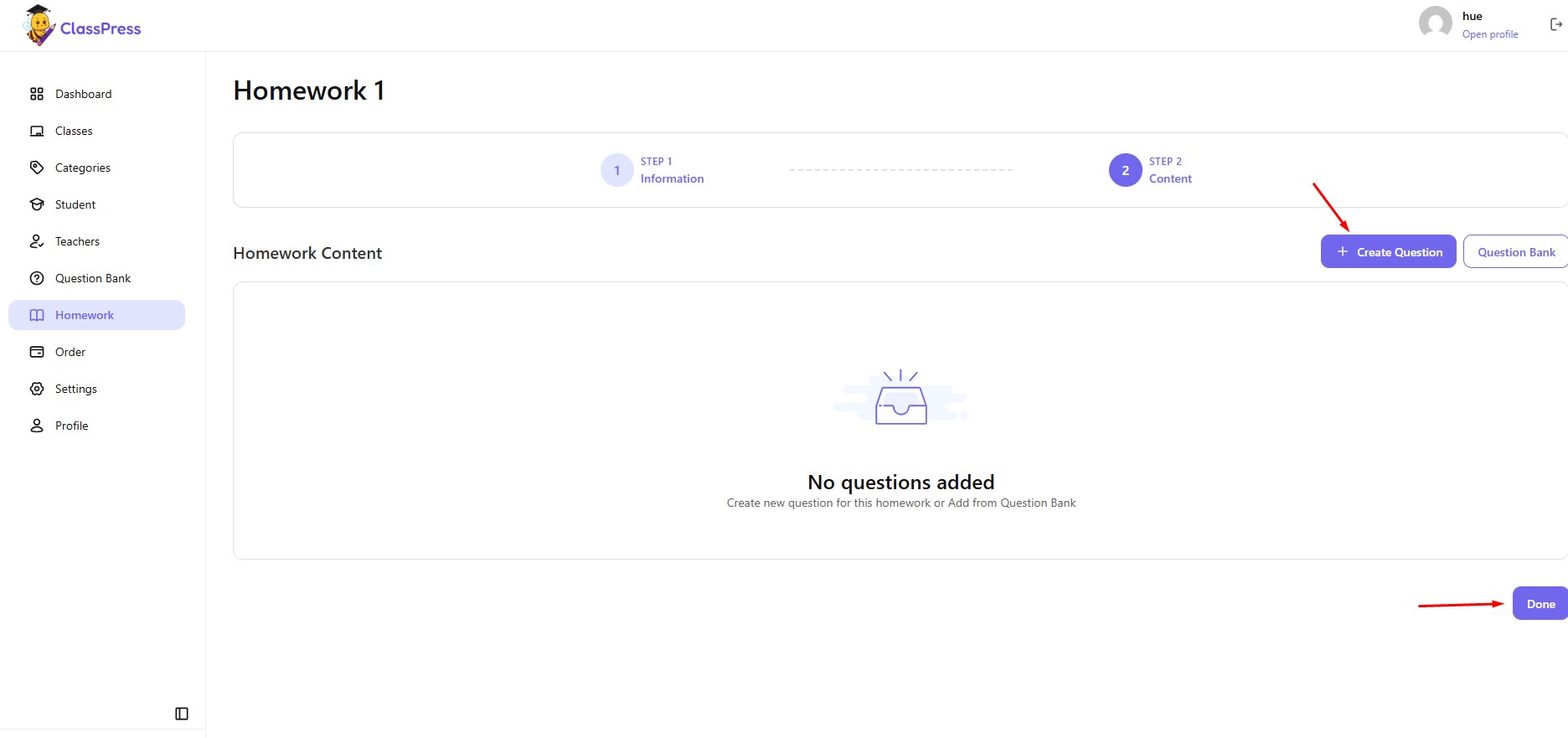
If you need to update the homework information, click Step 1 – Information at the top of the page to return to the previous step. After saving your changes, click Step 2 – Content to continue creating or editing the homework questions.
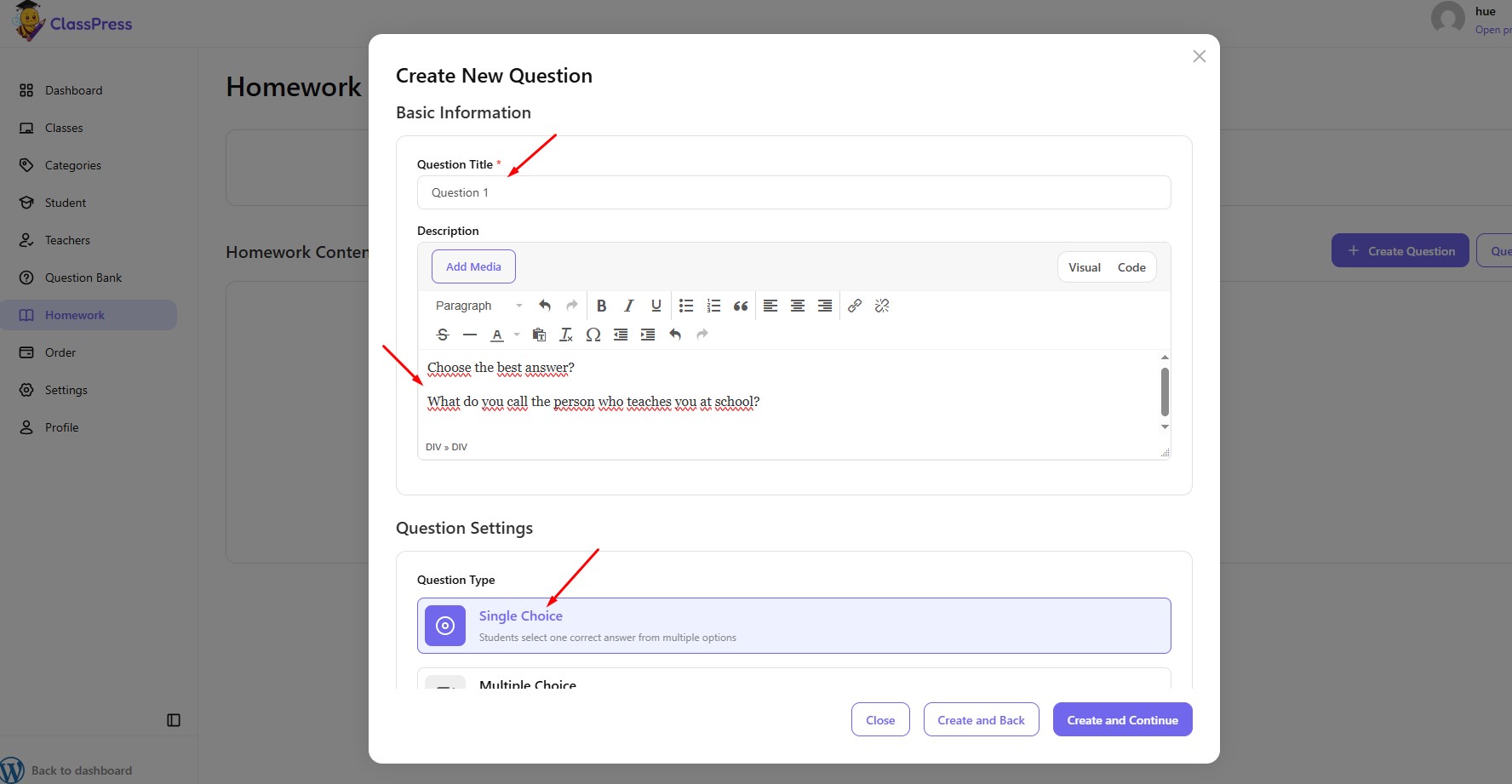
Question Type
Choose the type of question you want to create.
Depending on your configuration, available question types may include:
- Single Choice
- Multiple Choice
- True / False
- Essay
Each question type provides different answer options for students.
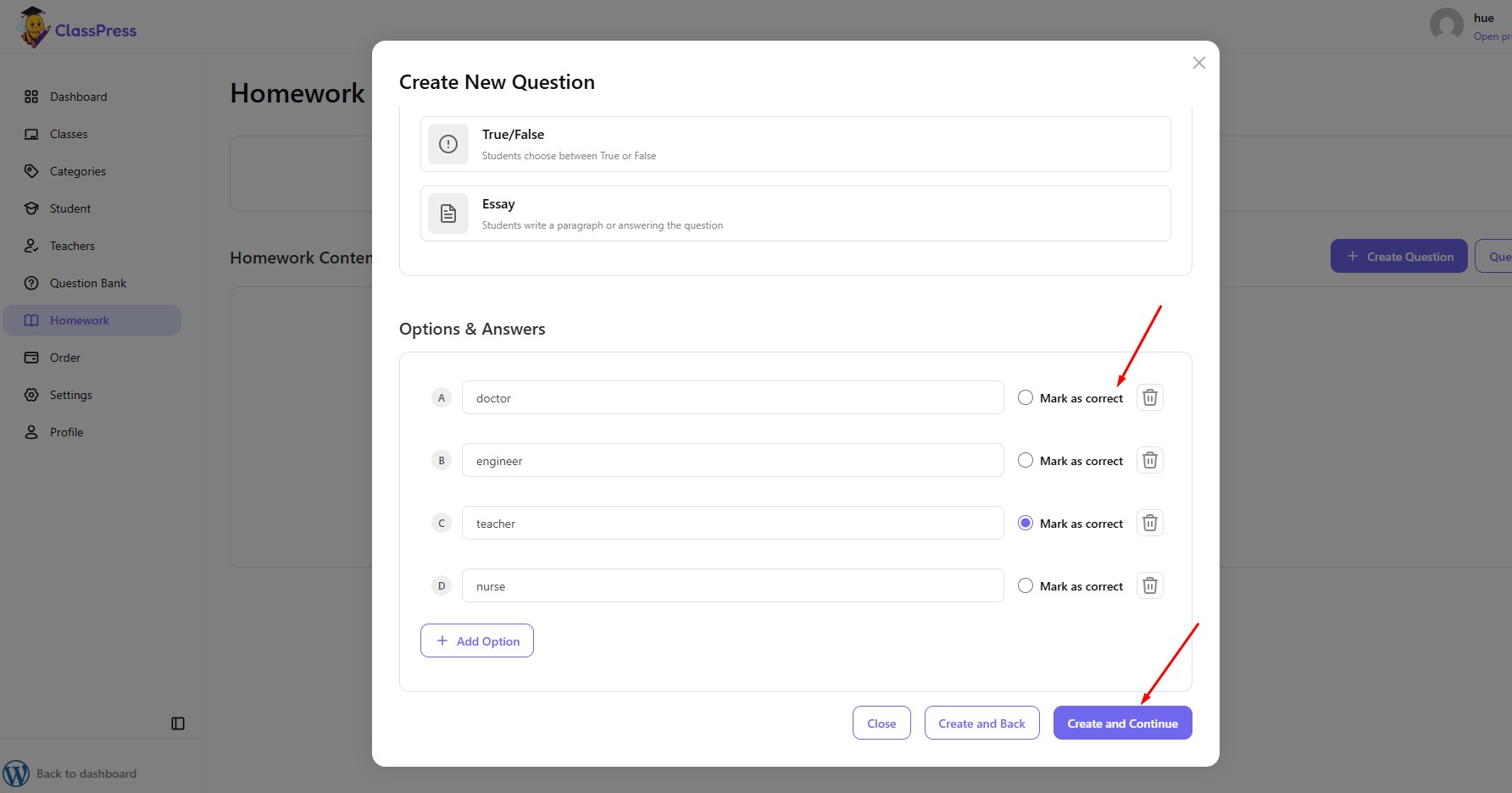
Note: If you change the Question Type after entering information in the Options & Answers section, the existing answer options will be cleared automatically. You will need to enter the options again for the newly selected question type.
Ex:
Saving the Question
After entering the required information, you can choose one of the following actions:
- Create and Continue – Save the current question and continue configuring it.
- Create and Back – Save the question and return to the homework content page.
- Close – Exit without creating the question.
Repeat this process until all questions have been added to the homework.
Add Questions from the Question Bank
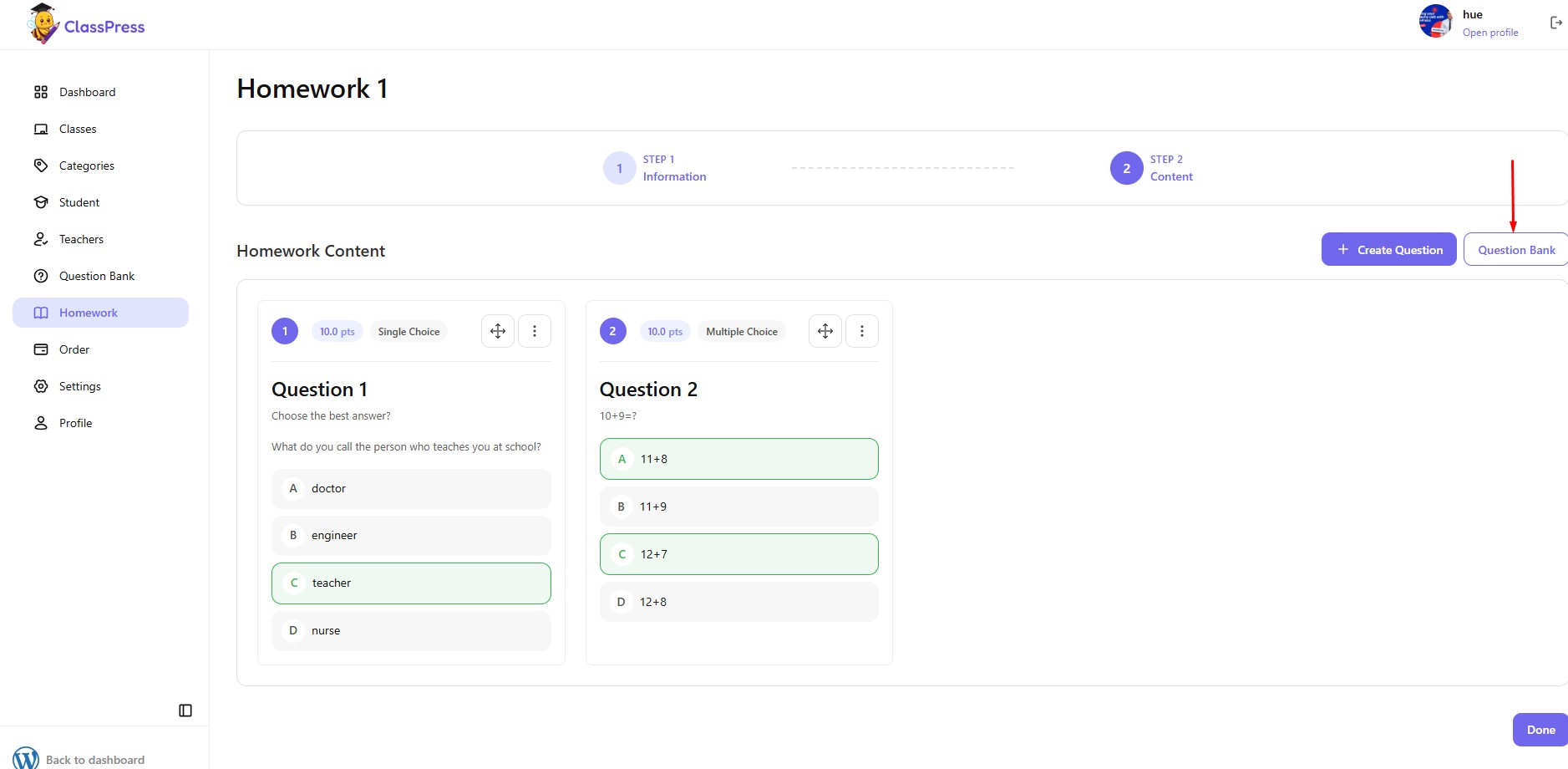
Instead of creating a new question, you can also add existing questions from the Question Bank.
To add questions from the Question Bank:
- Click Question Bank.
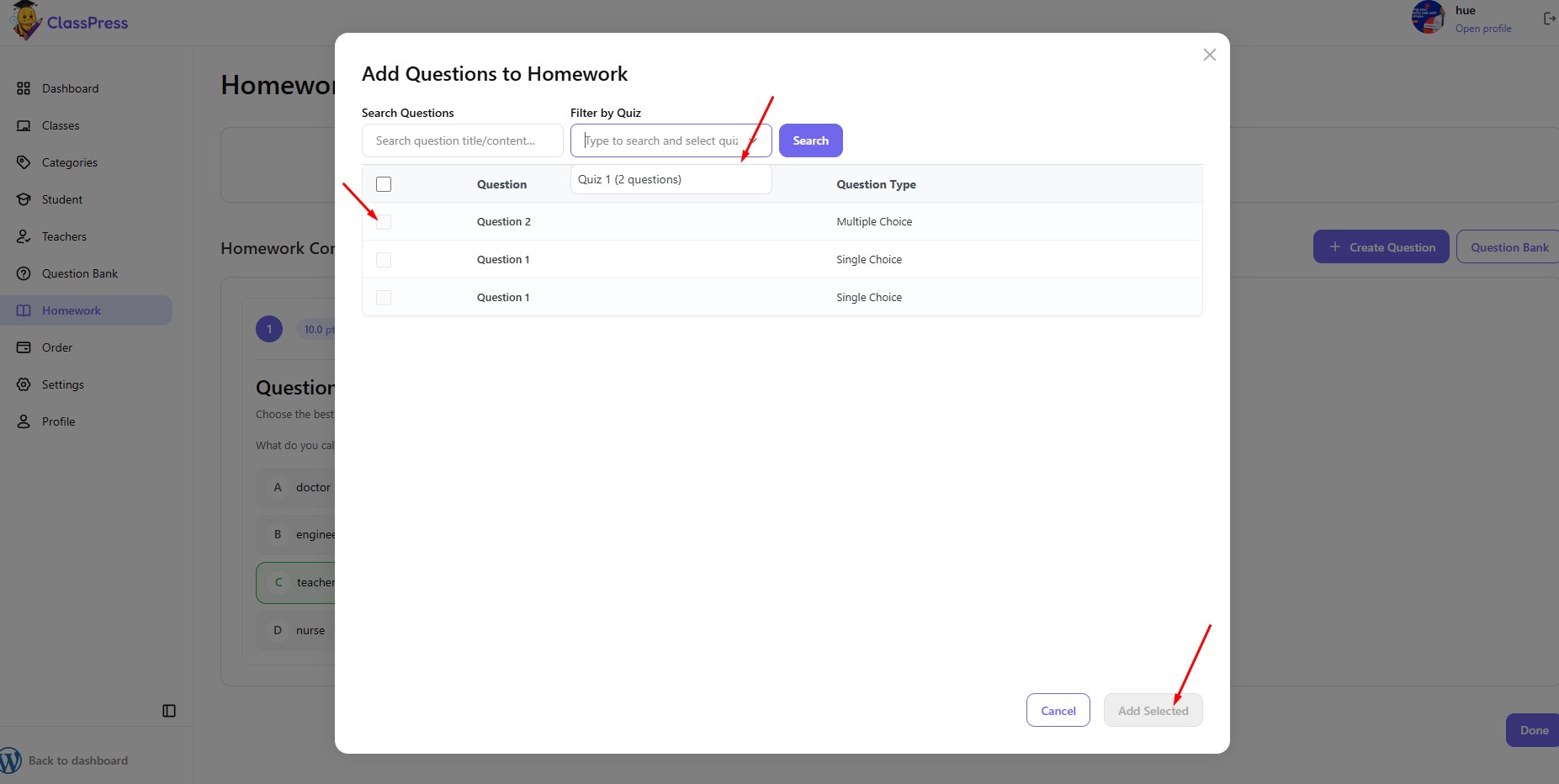
- Select one or more individual questions from the list, or use the Filter by Quiz option to display questions from a specific quiz before selecting them.
- Click Add Selected to add the selected questions to the homework.
Using the Filter by Quiz option makes it easier to find and add questions from a specific quiz when your Question Bank contains many questions.
Completing the Homework
Once all questions have been created, click Done to finish the homework setup.
The homework will then appear in the Homework list and can be assigned to students according to its publish status and schedule.