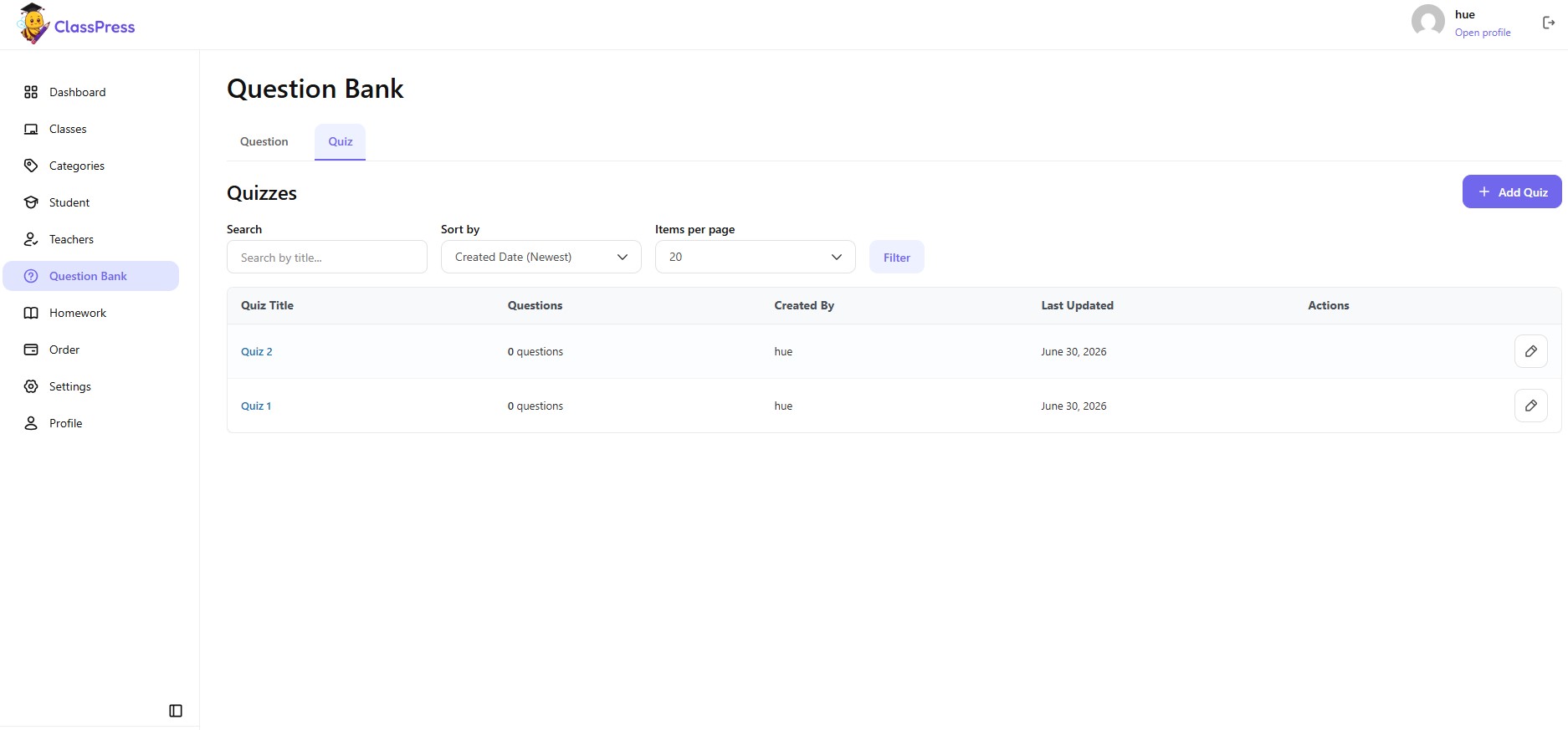
The Question Bank allows you to create and manage questions that can be reused in quizzes and homework. From this page, you can search, filter, edit, or delete existing questions, as well as create new ones.
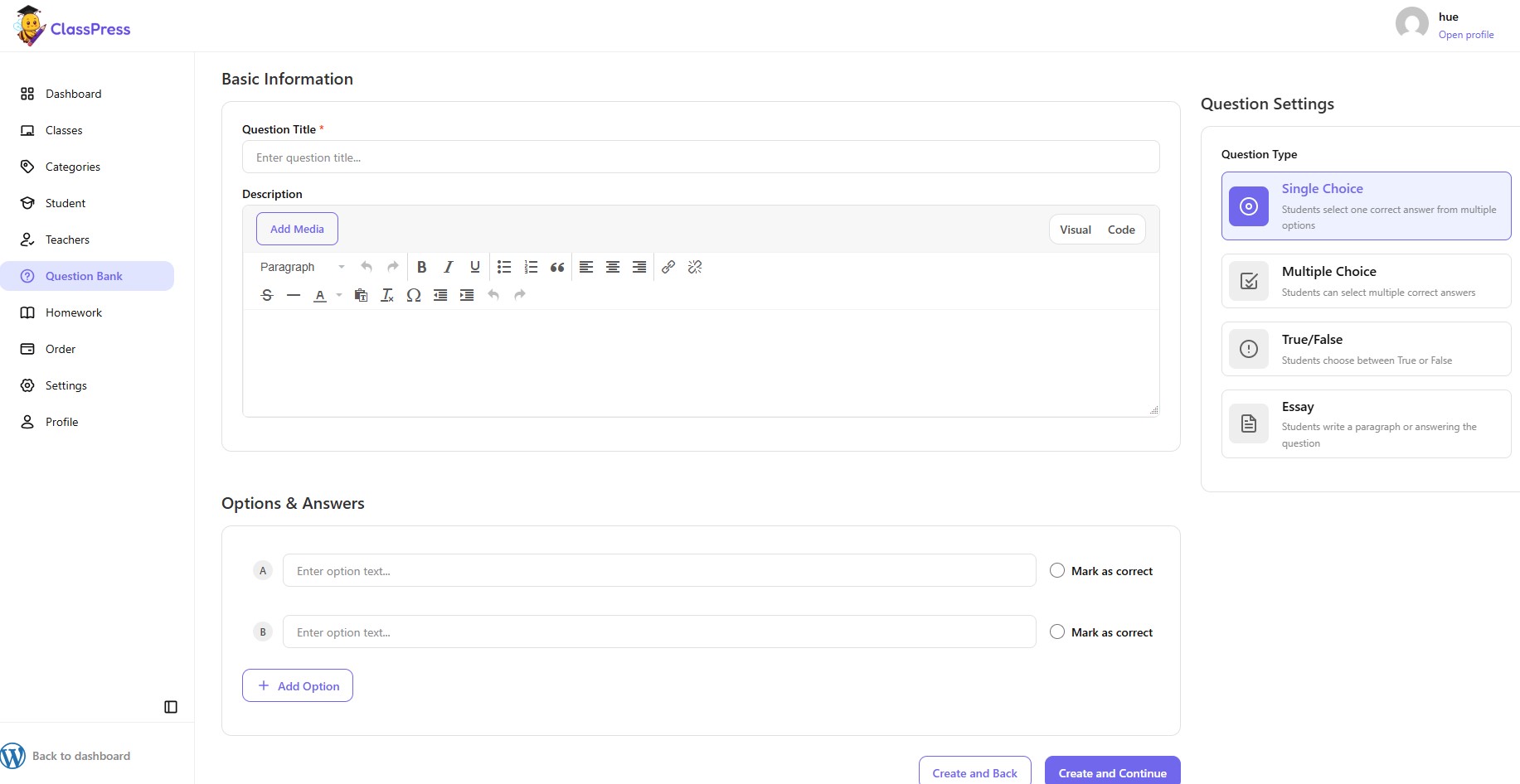
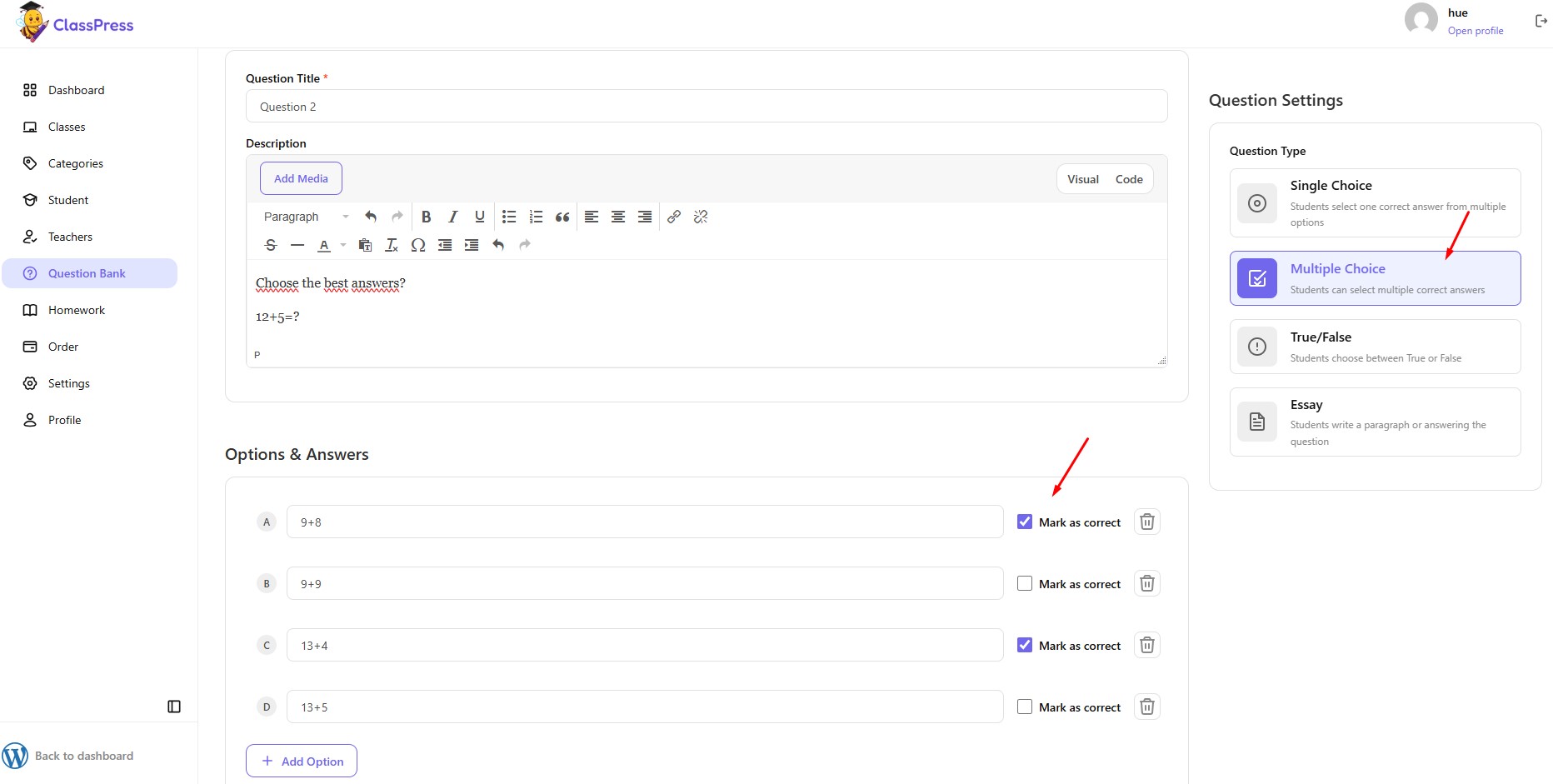
To create a new question, navigate to Question Bank from the left sidebar, then click the Add Question button.
This will open the Create Question page, where you can configure the question details.
1.Creating a New Question
To create a new question:
- Click Add Question.
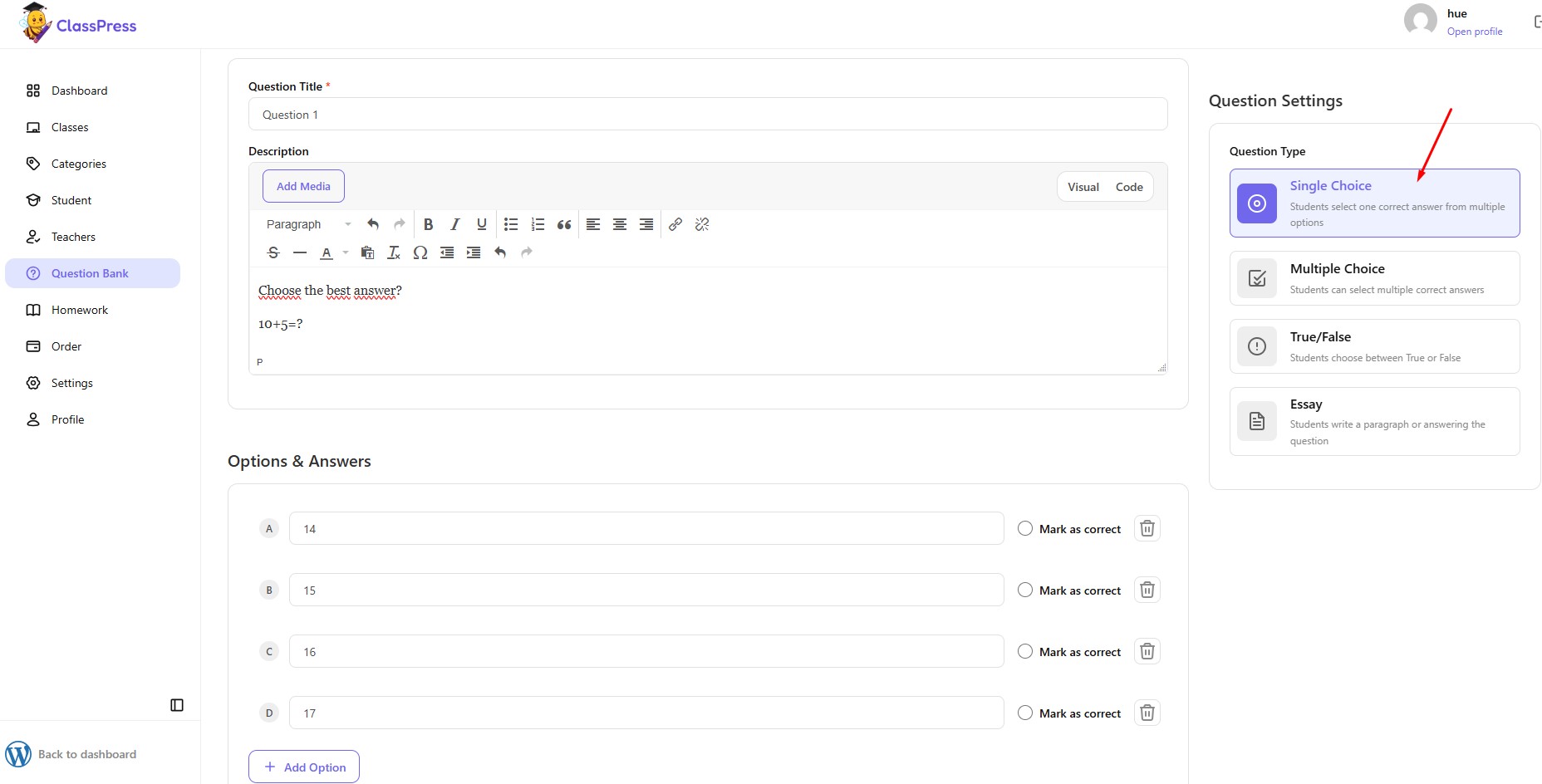
- Enter the question title and description.
- Select the Question Type (Single Choice, Multiple Choice, True/False, or Essay).
- Add the answer options and mark the correct answer(s) if applicable.
- Click Create and Continue to save the question and continue creating another one, or click Create and Back to save the question and return to the Question Bank list.
You will then be redirected according to the button you selected:
- Create and Continue opens a new blank question form.
- Create and Back returns you to the Question Bank page.
2.Creating a New Quiz
To create a new quiz:
- Click the Quiz tab.
- Click Add Quiz.
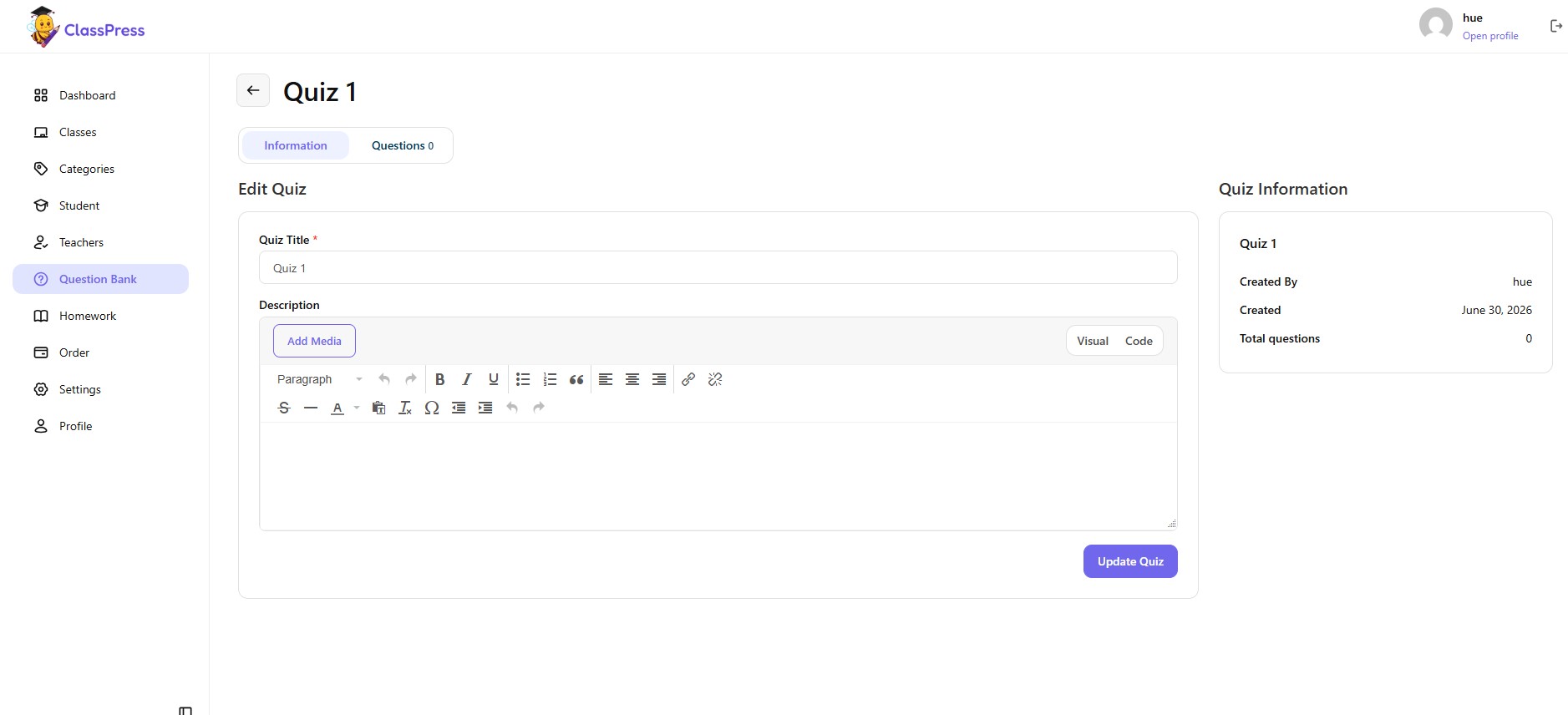
- Enter the Quiz Title and Description.
- Click Create Quiz to save.
You will then be redirected to the Quiz Details page, where you can manage the quiz content.
From this page, you can:
- Click Create Question to create a new question and add it directly to the quiz.
- Click Question Bank to select existing questions from your Question Bank and add them to the quiz.
Once questions have been added, they will appear under the Questions tab, where you can continue managing and organizing your quiz.