
The Profile page allows you to manage your personal information, update your profile and cover images, and change your account password.
To update your profile:
- Navigate to Profile.
- Edit the desired information.
- Click Update profile to save your changes.
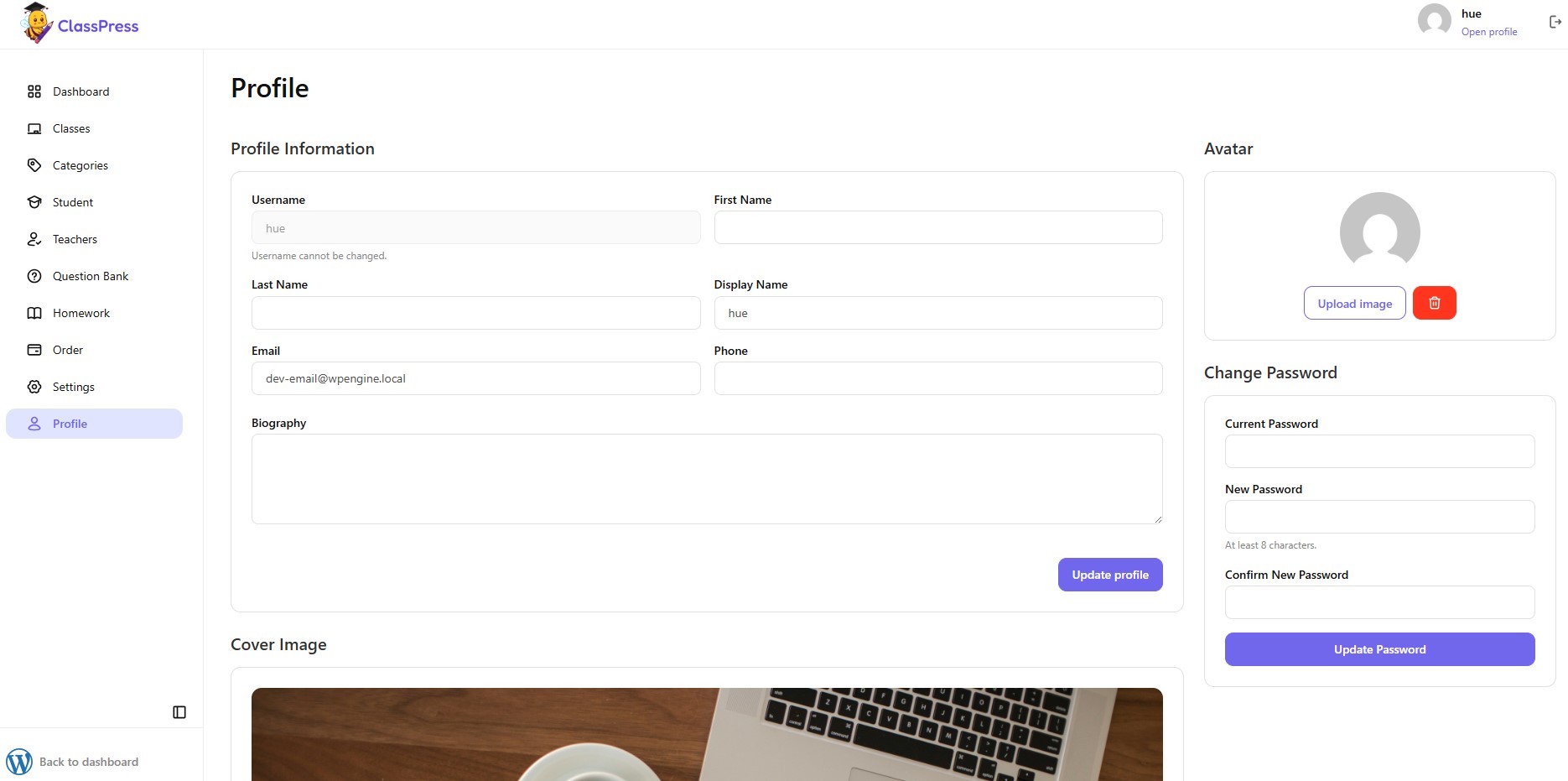
1.Profile Information
The Profile Information section contains your personal account details.
Available fields
- Username – Displays your account username. This field cannot be changed.
- First Name – Enter your first name.
- Last Name – Enter your last name.
- Display Name – Specify how your name will appear throughout the website.
- Email – Displays your account email address.
- Phone – Enter your contact phone number.
- Biography – Add a short biography or personal description that can be displayed on your profile.
After updating any information, click Update profile to save the changes.
2.Avatar
The Avatar section allows you to manage your profile picture.
To update your avatar:
- Click Upload image.
- Select an image from your computer.
- Save your profile by clicking Update profile.
To remove the current avatar, click the Delete icon next to the upload button.
3.Change Password
The Change Password section allows you to update your account password.
To change your password:
- Enter your Current Password.
- Enter your New Password (minimum 8 characters).
- Re-enter the new password in Confirm New Password.
- Click Update Password.
Your password will be updated immediately after successful validation.
4.Cover Image
The Cover Image section allows you to customize the banner displayed at the top of your profile page.
To update your cover image:
- Scroll down to the Cover Image section.
- Upload or replace the existing cover image.
- Click Update profile to save the changes.
The cover image helps personalize your profile and provides a more professional appearance throughout the platform.