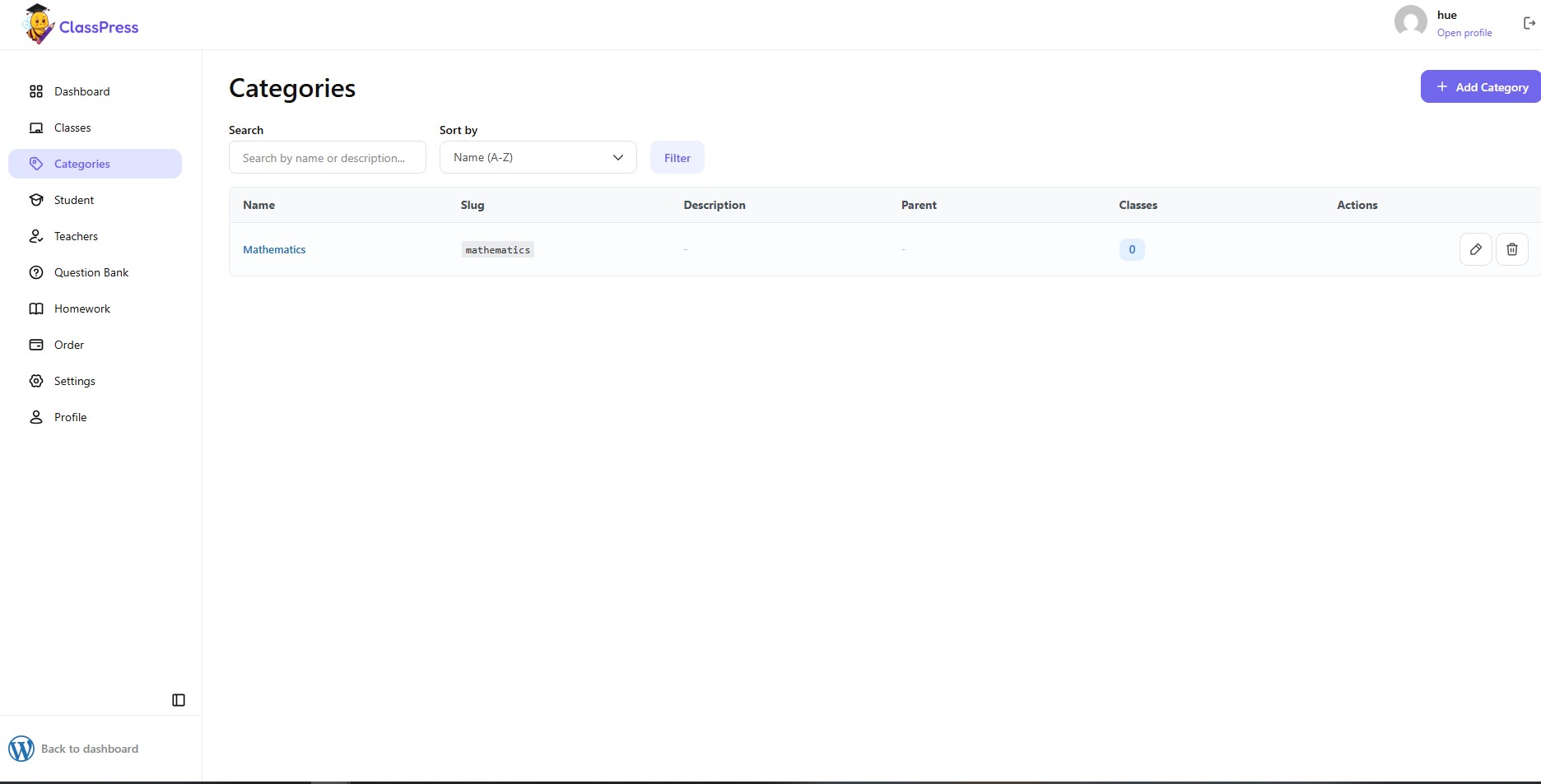
The Categories page allows administrators to create and organize categories for classes.
To access this page, click Categories from the left sidebar.
The Categories page displays all existing categories. If no categories have been created, ClassPress displays a No Categories Found message.
At the top of the page, you can use several tools to manage categories.
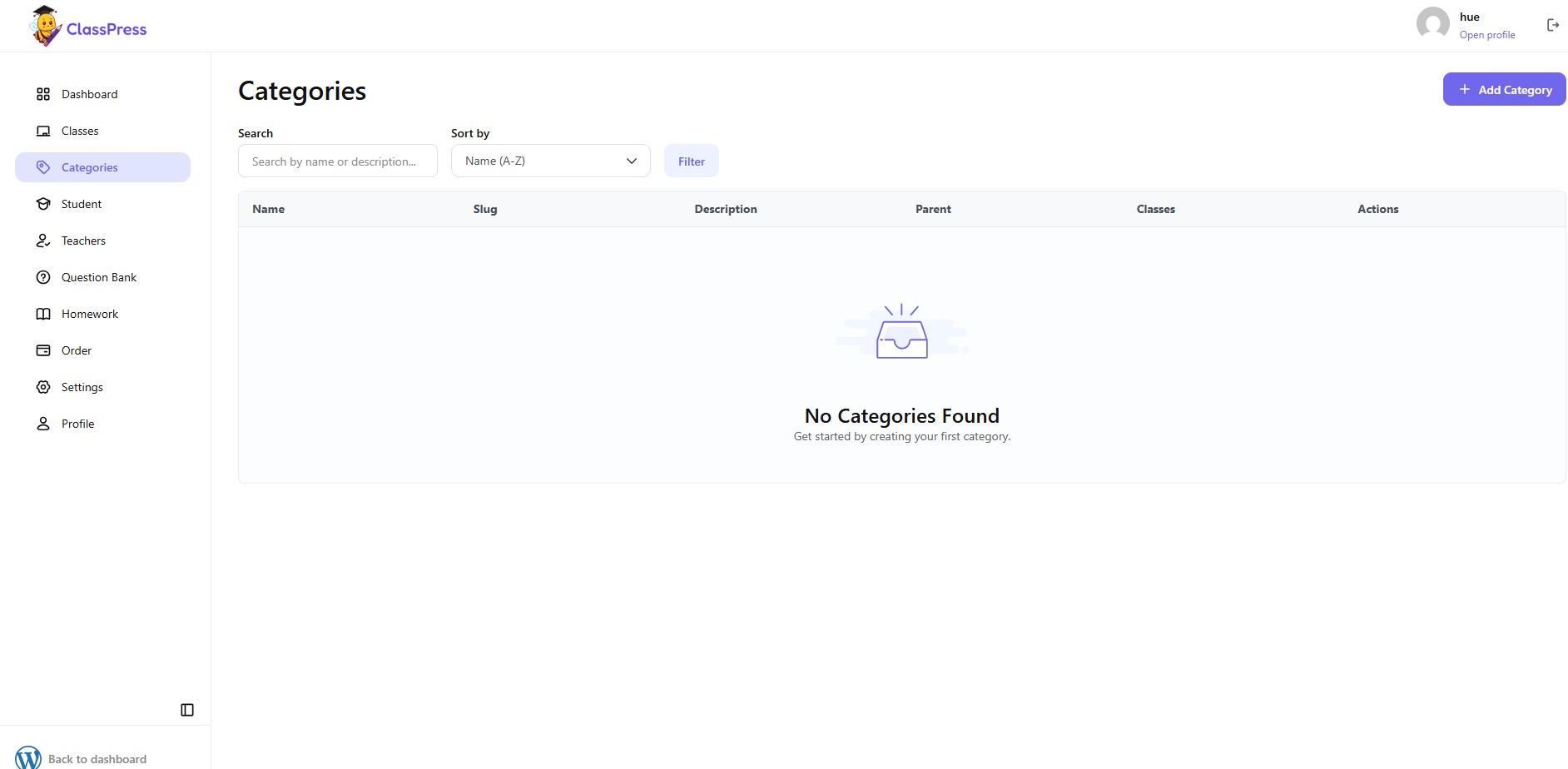
Search
Enter a category name or description to quickly find an existing category.
Sort by
Sort the category list using the available options, such as displaying categories in alphabetical order.
Filter
After selecting your search criteria, click Filter to refresh the results.
Creating a New Category
To create a new category:
- Navigate to Categories.
- Click Add Category.
- Complete the required information.
- Click Add Category to save.
You will then be redirected to the category creation page.
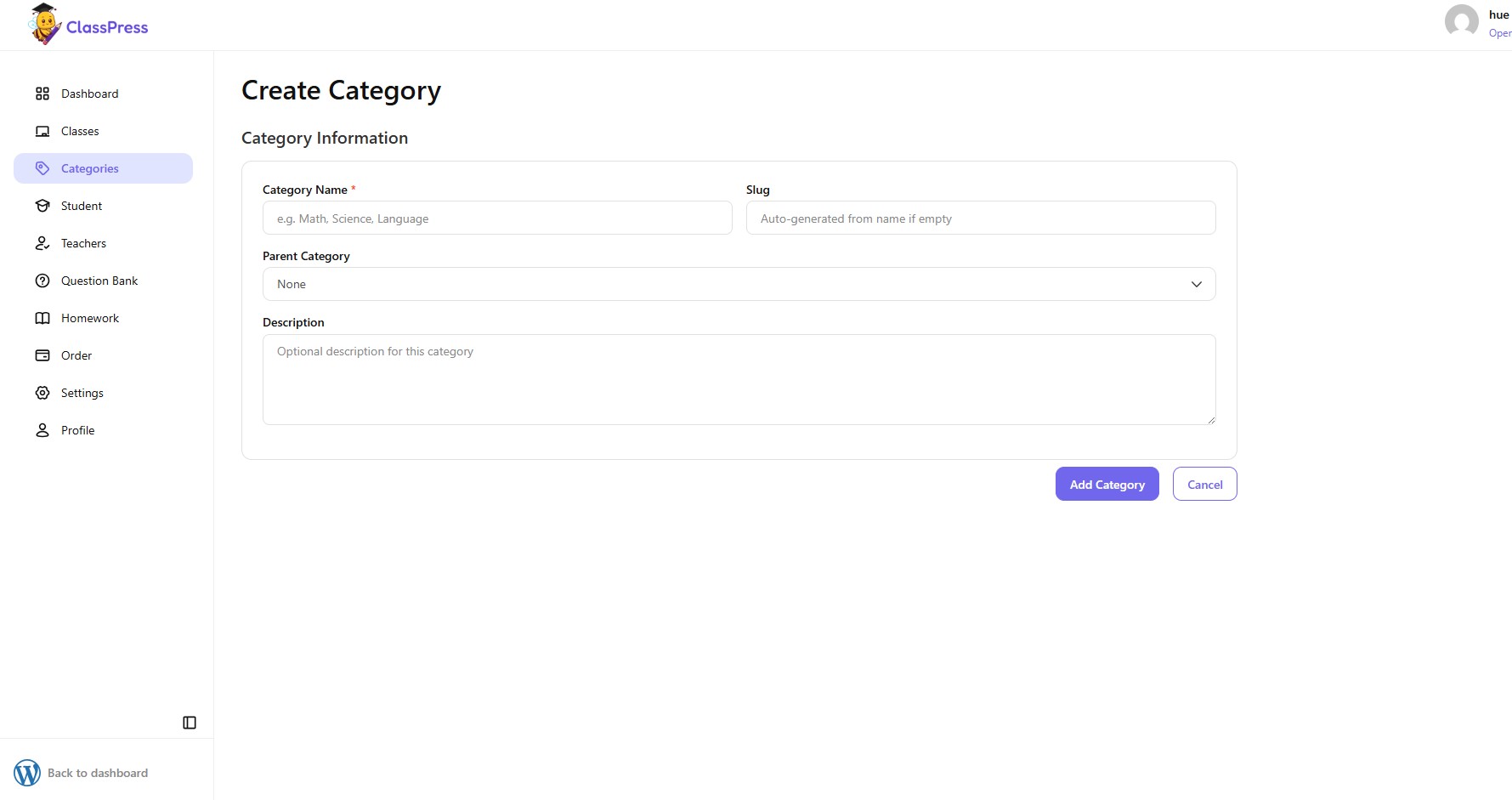
Category Name
Enter a name for the category.
Examples:
- Mathematics
- Science
- Languages
- Primary School
This field is required.
Slug
- The slug is the URL-friendly version of the category name.
- If left empty, ClassPress automatically generates a slug based on the category name.
- You can also enter a custom slug if needed.
Parent Category
Select a parent category to create a hierarchical category structure.
For example:
- Mathematics
- Algebra
- Geometry
Leave this option as None if you want to create a top-level category.
Description
- Optionally, enter a short description for the category.
- This description can help administrators better understand the purpose of the category.
Saving the Category
After completing the required information:
- Click Add Category to create the category.
- Click Cancel to return without saving.
Once created successfully, the category will appear in the Categories list and can be assigned to classes.