
1. Overview
The Thim Post Carousel block allows you to display blog posts in a horizontal carousel.
You can control post query options, display elements, and slider behavior such as navigation arrows, pagination dots, and spacing between slides.
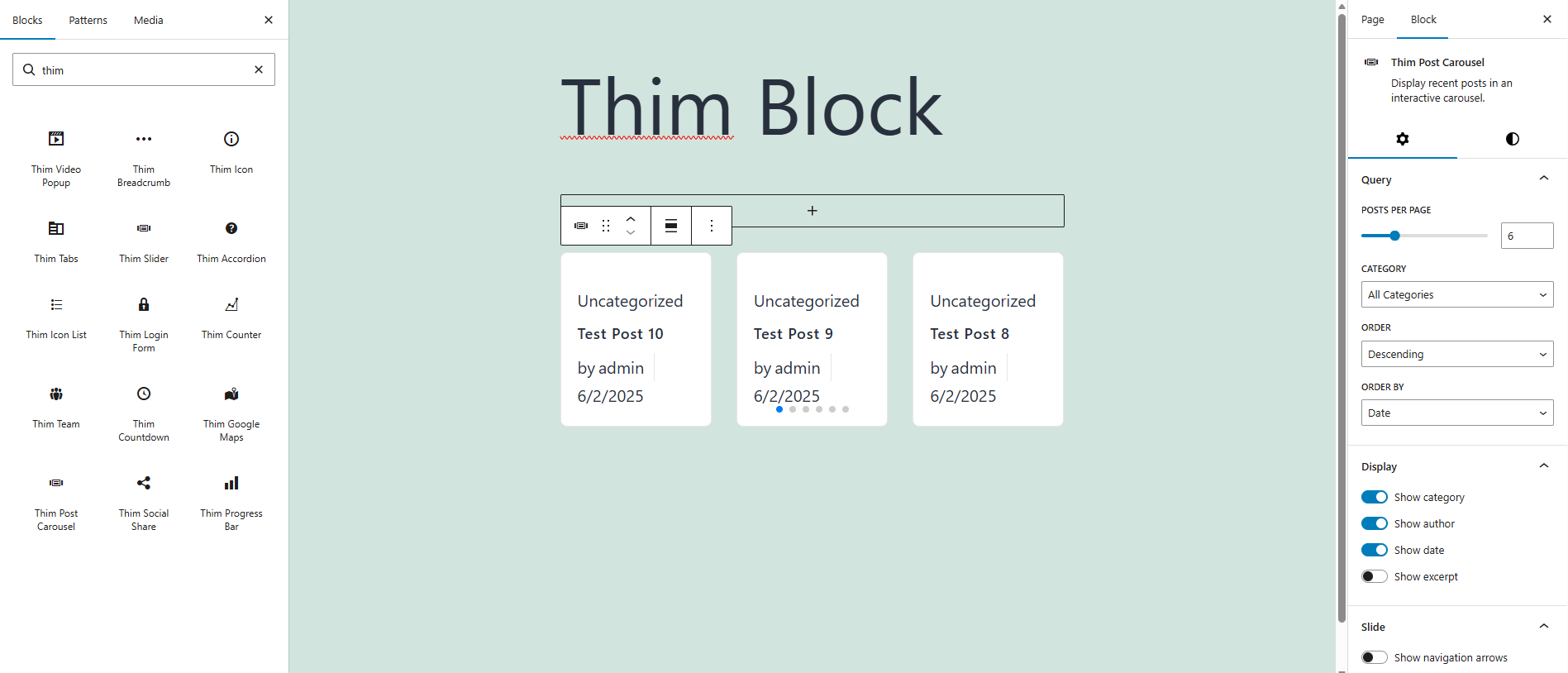
2. Query Settings
2.1 Posts Per Page
Select the number of posts to display in the carousel.
2.2 Category
Choose a specific post category to display.
If All Categories is selected, posts from all categories will be shown.
2.3 Order
Define the order in which posts are displayed.
-
Ascending
-
Descending
2.4 Order By
Choose how posts are sorted.
-
Date
-
Title
-
Author
-
Random
3. Display Settings
3.1 Show Category
Enable or disable displaying the post category label.
3.2 Show Author
Enable or disable displaying the post author name.
3.3 Show Date
Enable or disable displaying the post publish date.
3.4 Show Excerpt
Enable or disable displaying a short excerpt of the post content.
4. Slide Settings
4.1 Show Navigation Arrows
Toggle previous and next arrows for the carousel.
4.2 Show Pagination Dots
Enable or disable pagination dots below the carousel.
4.3 Screen Type
Adjust slide settings for different devices:
-
Desktop
-
Tablet
-
Mobile
4.4 Slides to Show
Set the number of posts visible at the same time.
4.5 Space Between Slides
Control the spacing (in pixels) between each slide.
5. Dimensions
5.1 Padding
Adjust the inner spacing of the carousel block.
6. Thim Animation
6.1 Animation Type
Choose an animation effect when the block appears on the page.
Set to None to disable animation.
7. Thim Custom CSS
7.1 Custom CSS
Add custom CSS to style this block.
Use the selector keyword to target the block wrapper.
Example:
8. Advanced
Advanced settings for responsive behavior, visibility, and additional block controls.