
1. Overview
The Thim Team block is used to display team members in a grid or profile section.
Each team item can include an avatar, name, position, description, and social links, with flexible layout and styling options.
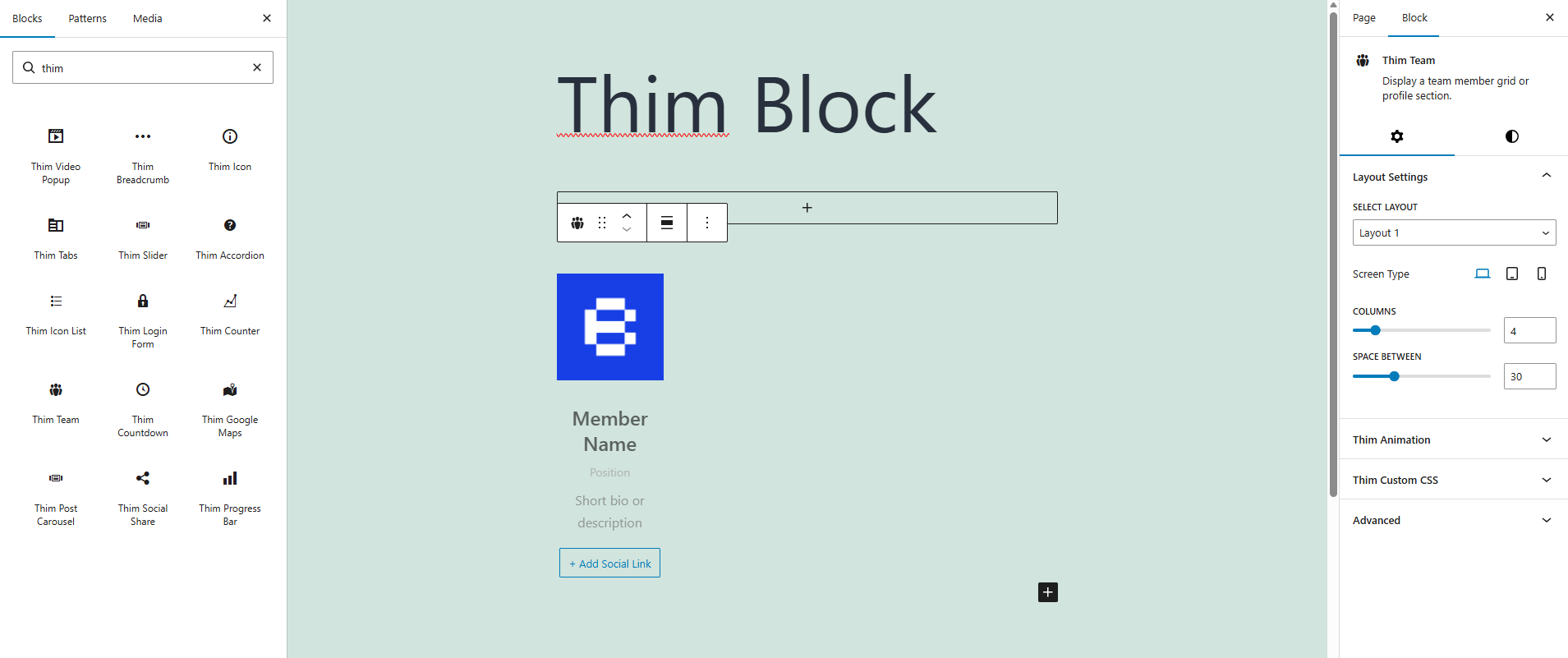
2. Layout Settings
Configure the overall layout of the team block.
-
Select Layout
Choose the layout style for displaying team members (e.g. Layout 1). -
Screen Type
Adjust layout settings separately for Desktop, Tablet, and Mobile devices. -
Columns
Set the number of columns to display team members in the grid. -
Space Between
Control the spacing (in pixels) between each team item.
3. Dimensions
Control spacing for the entire Thim Team block.
-
Padding
Set inner spacing (top, right, bottom, left) for the block content.
4. Avatar
Customize the team member avatar appearance.
-
Spacing With Content (px)
Set the distance between the avatar and the content below it. -
Radius
Adjust the border radius of the avatar image to create rounded corners or a circular shape.
5. Name
Style the team member’s name.
-
Screen Type
Configure name styles for different devices. -
Font Size
Set the font size of the member name. -
Margin (px)
Adjust spacing around the name. -
Color
Choose the text color for the name.
6. Position
Style the job title or role of the team member.
-
Screen Type
Set styles per device type. -
Font Size
Define the font size for the position text. -
Margin (px)
Control spacing above and below the position. -
Color
Set the text color for the position.
7. Description
Style the short bio or description text.
-
Screen Type
Configure description styles for Desktop, Tablet, and Mobile. -
Font Size
Set the font size of the description text. -
Margin (px)
Adjust spacing around the description. -
Color
Choose the description text color.
8. Social Links
Manage social media links for each team member.
-
Add Social Link
Add social icons and URLs (e.g. Facebook, Twitter, LinkedIn).
9. Thim Animation
Apply animation effects when the block appears on the page.
10. Thim Custom CSS
Add custom CSS styles specifically for the Thim Team block.
11. Advanced
Advanced configuration options for the block.
-
HTML Anchor
-
Additional CSS Class
-
Visibility settings