This Documentation is used for WooCommerce Add-on for LearnPress.
- WooCommerce account is required.
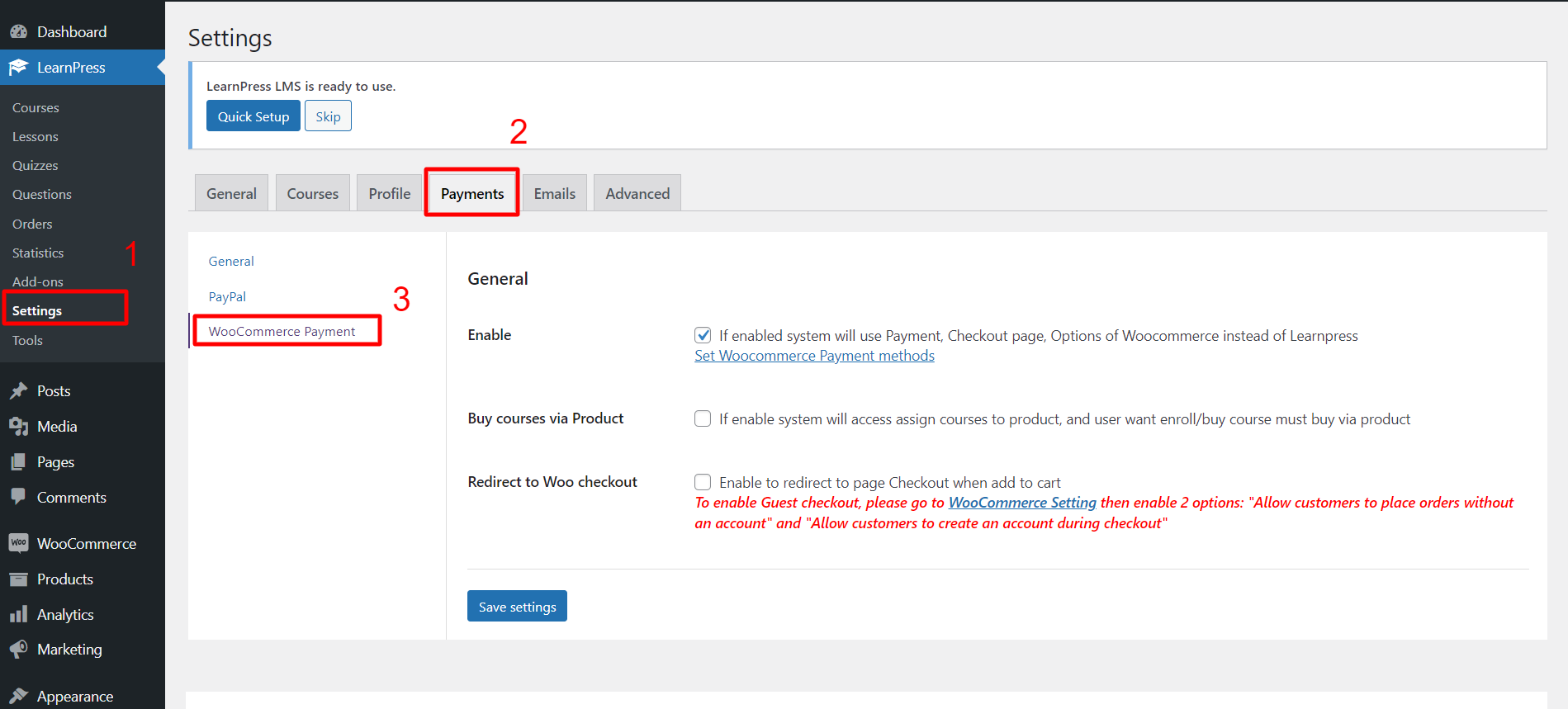
- Visit ‘LearnPress > Settings’
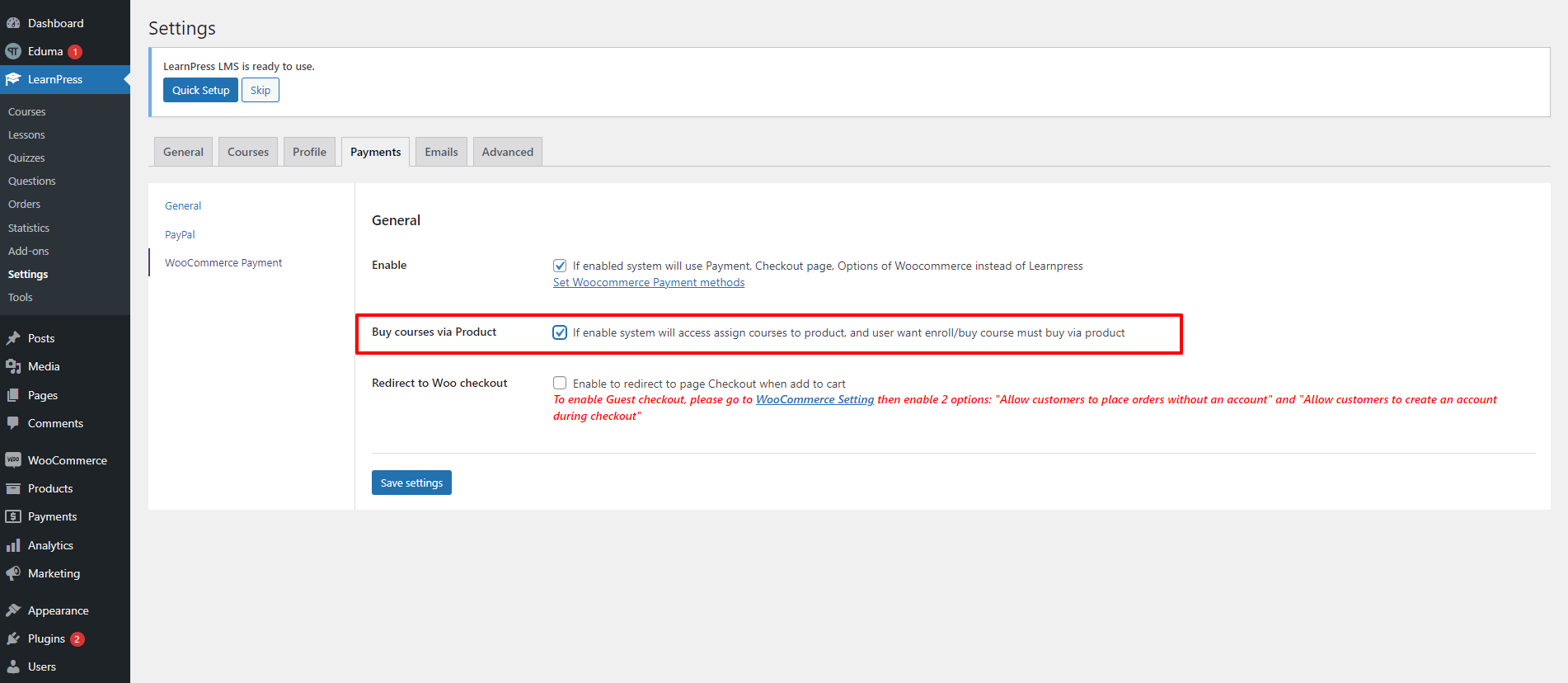
- Under the ‘Payments’ tab, choose ‘WooCommerce Payment’ and check ‘Enable’.
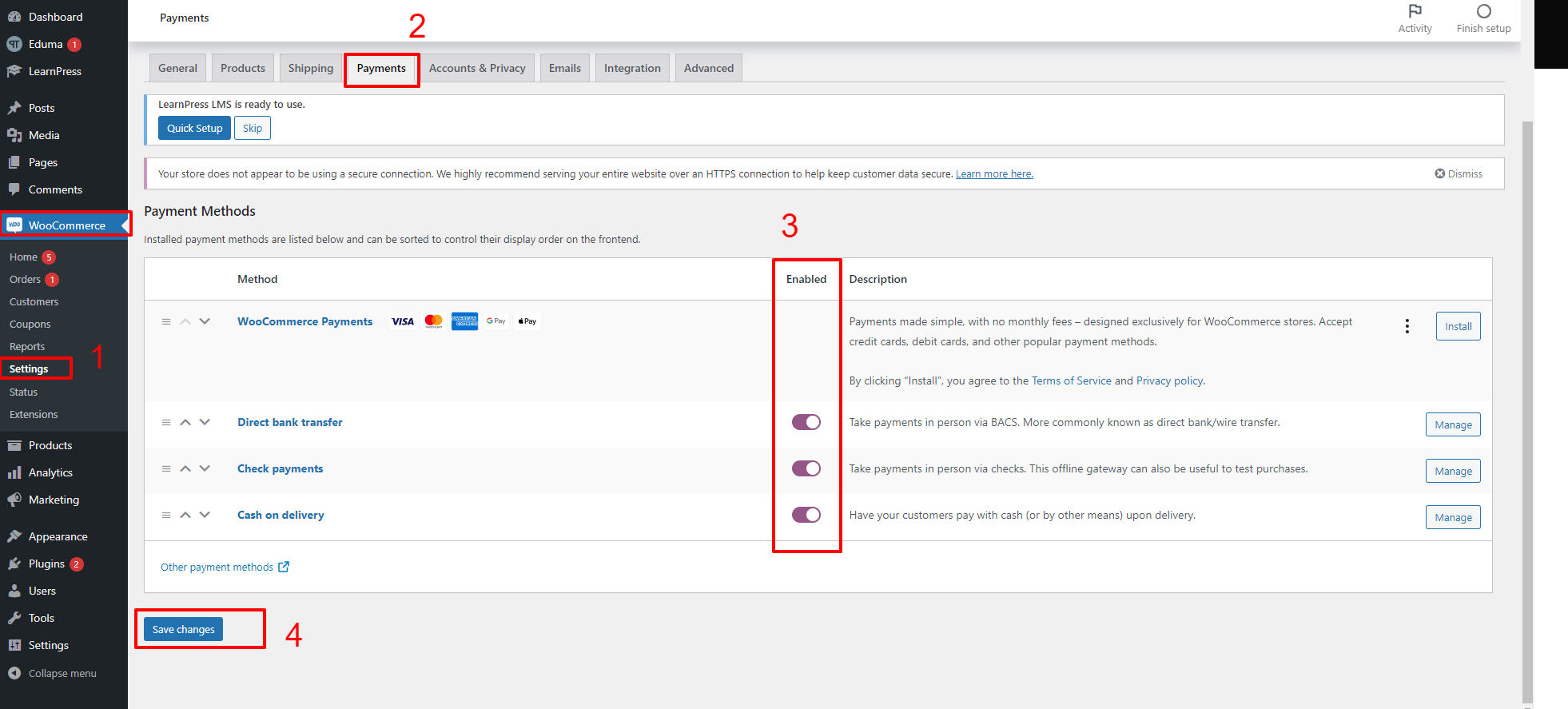
- Now, find “WooCommerce” on the sidebar -> select “Settings” -> see the “Payments” tab and enable the payment methods you want and click on the “Save Changes” button.
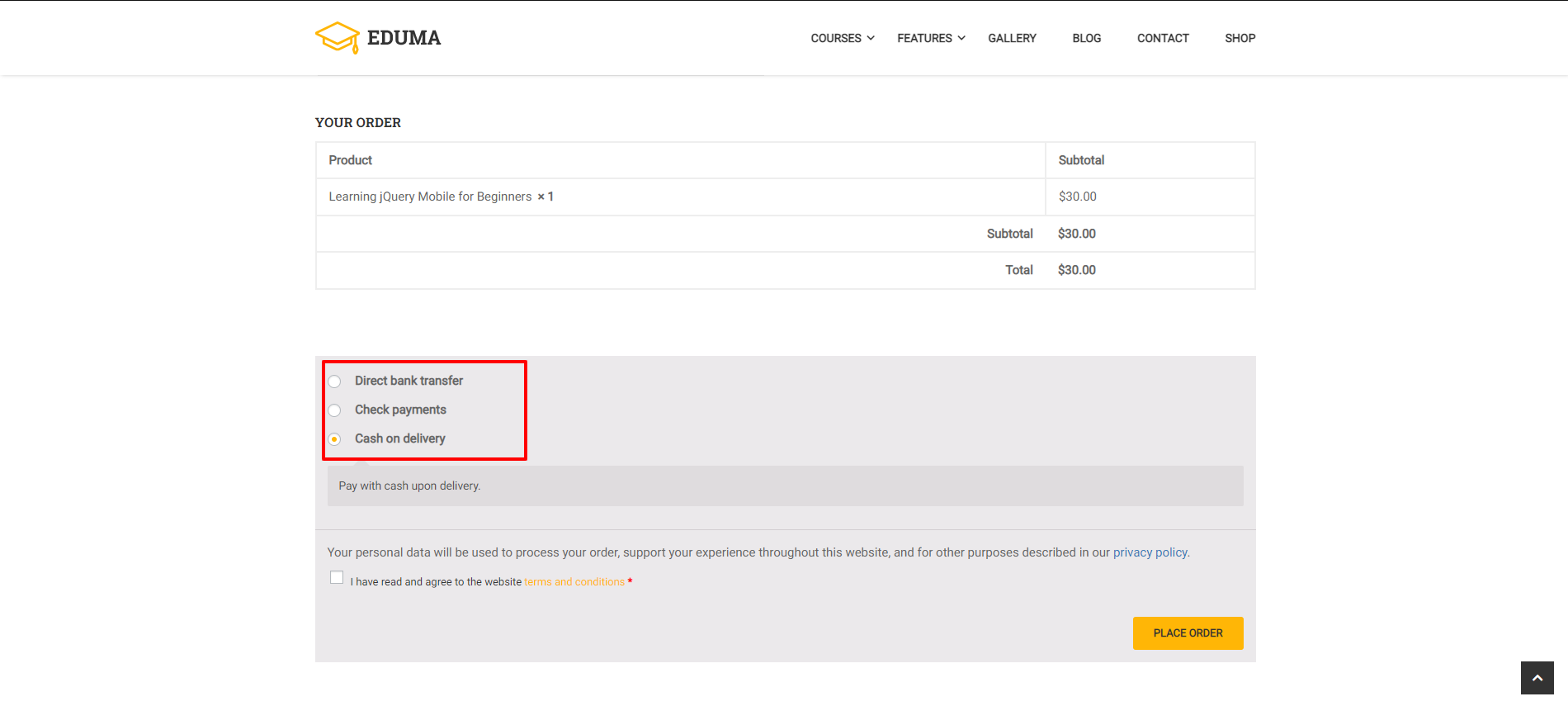
- ‘WooCommerce Payment’ options are now available on the student checkout page.
- Enable “Buy courses via product” If you just want users to buy courses via product.
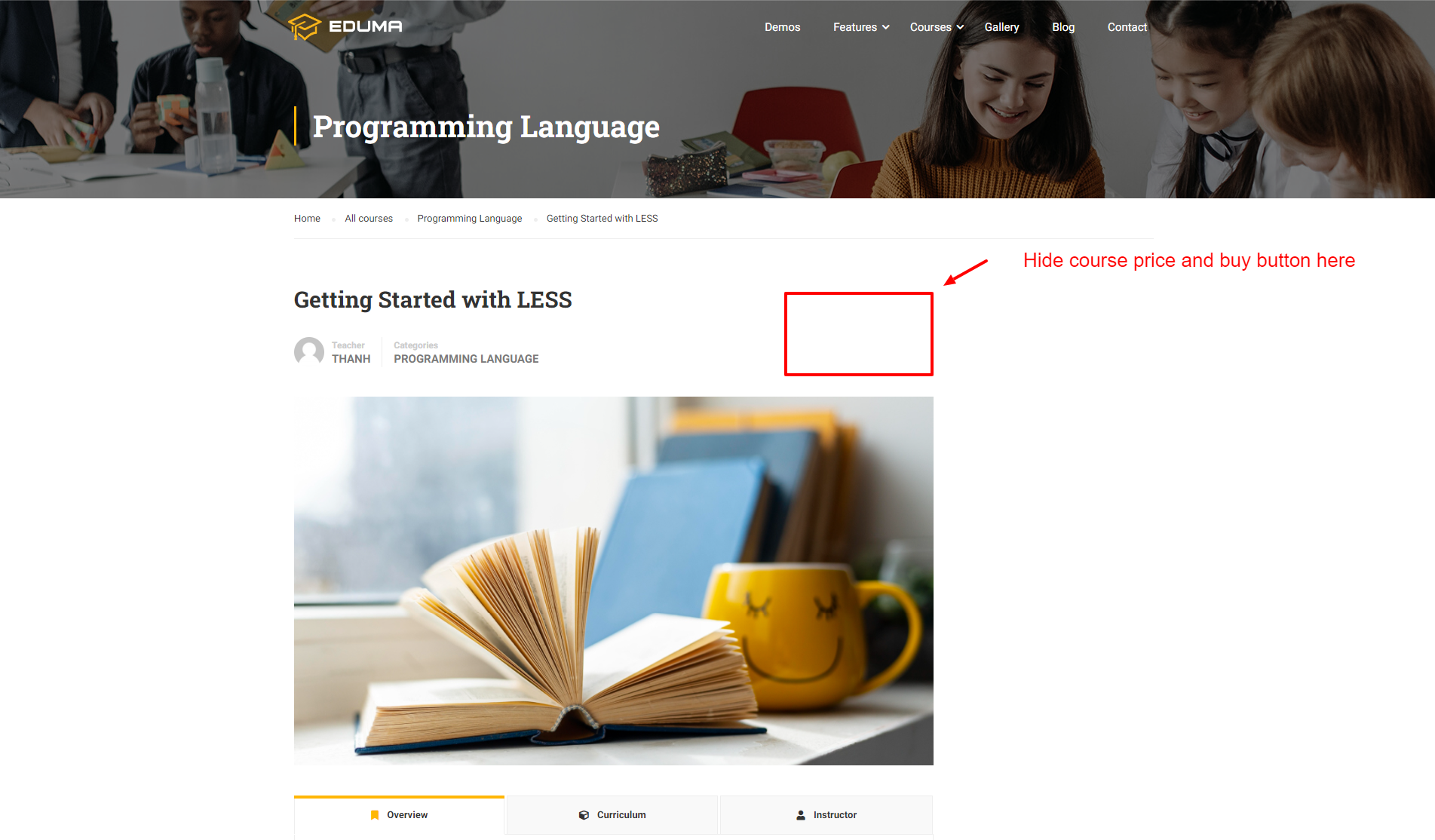
- After enabling this option, the course price and the purchase button on the Single course page will not be displayed.
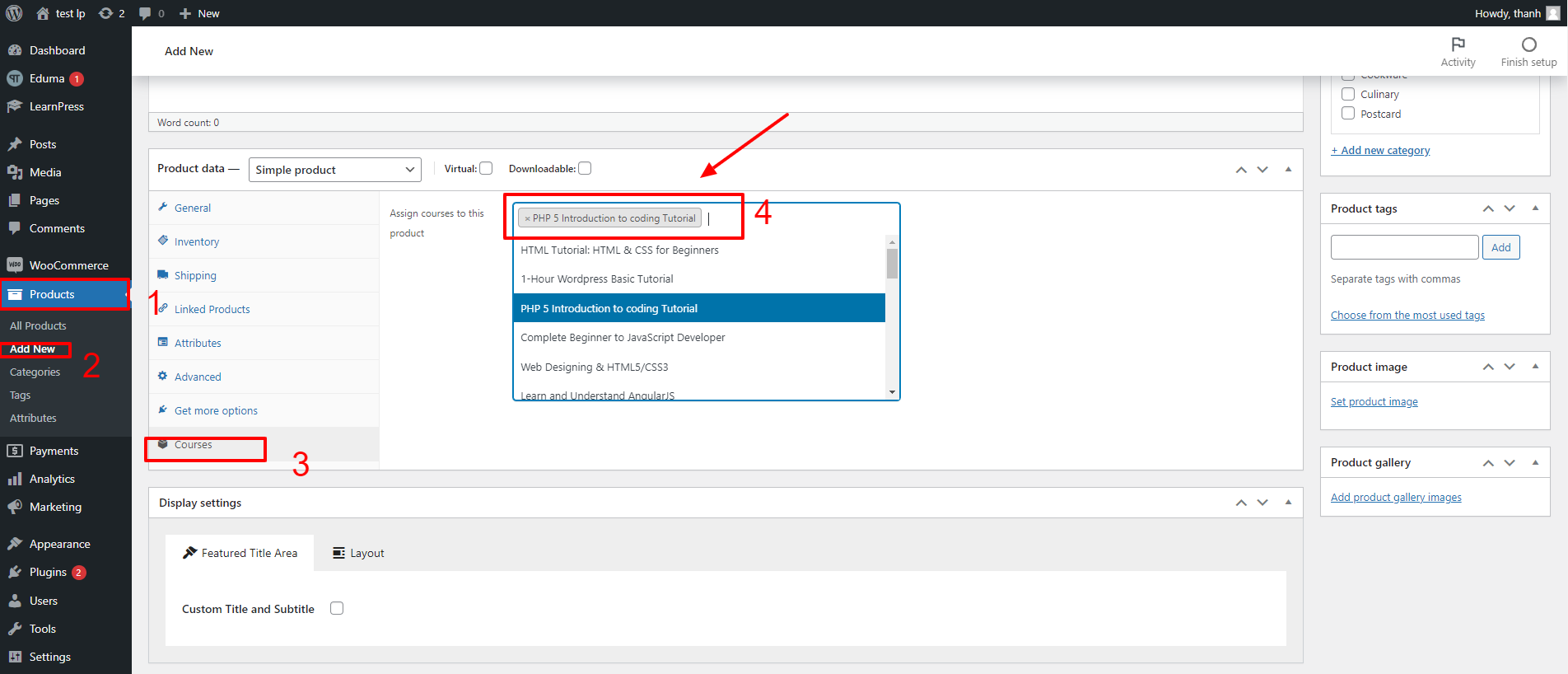
- To display different courses for your product, go to “Product” on your WordPress admin sidebar -> select “Add New”.
- Choose the “Courses” tab under “Product data”
- And you can assign the courses available for your product
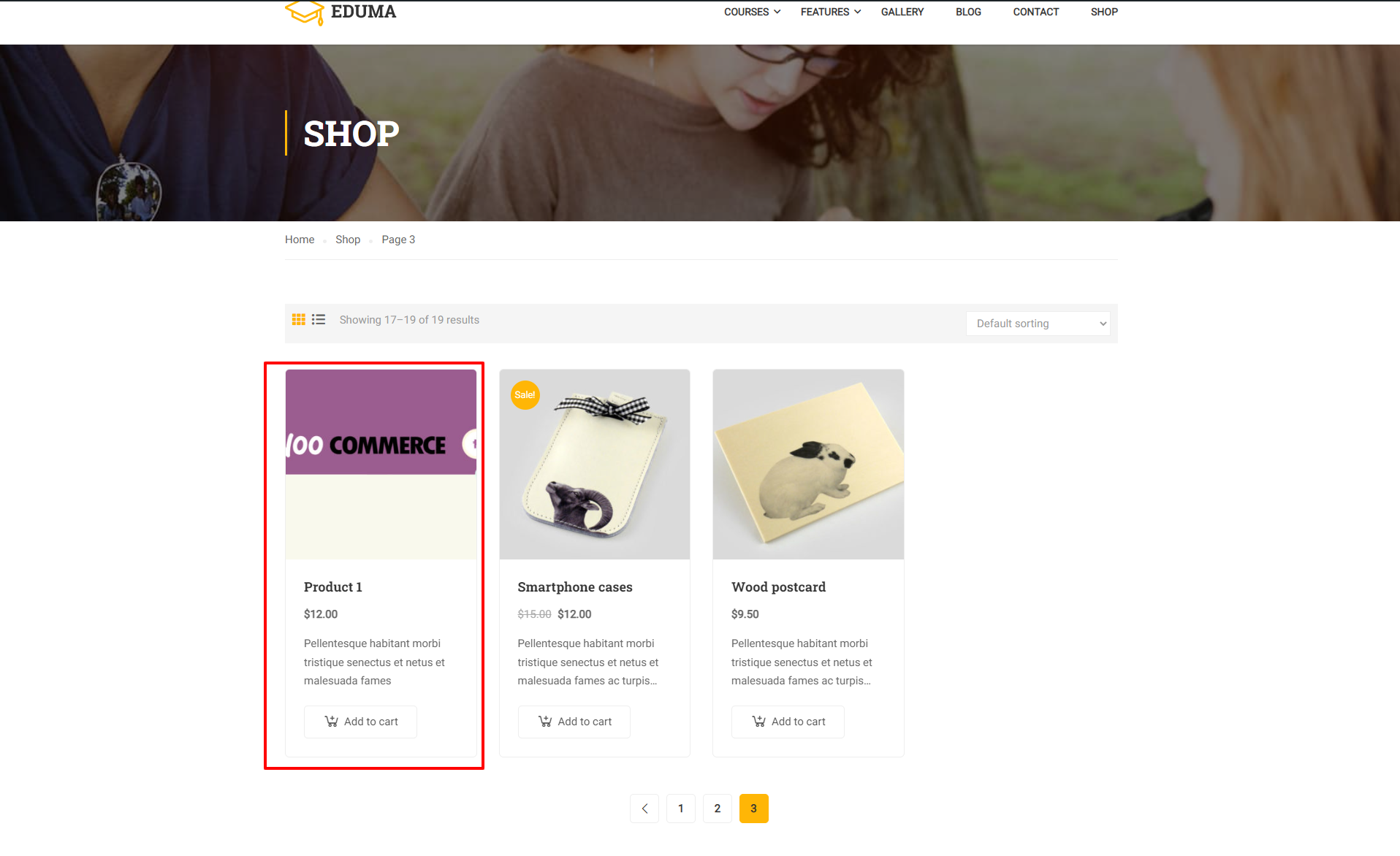
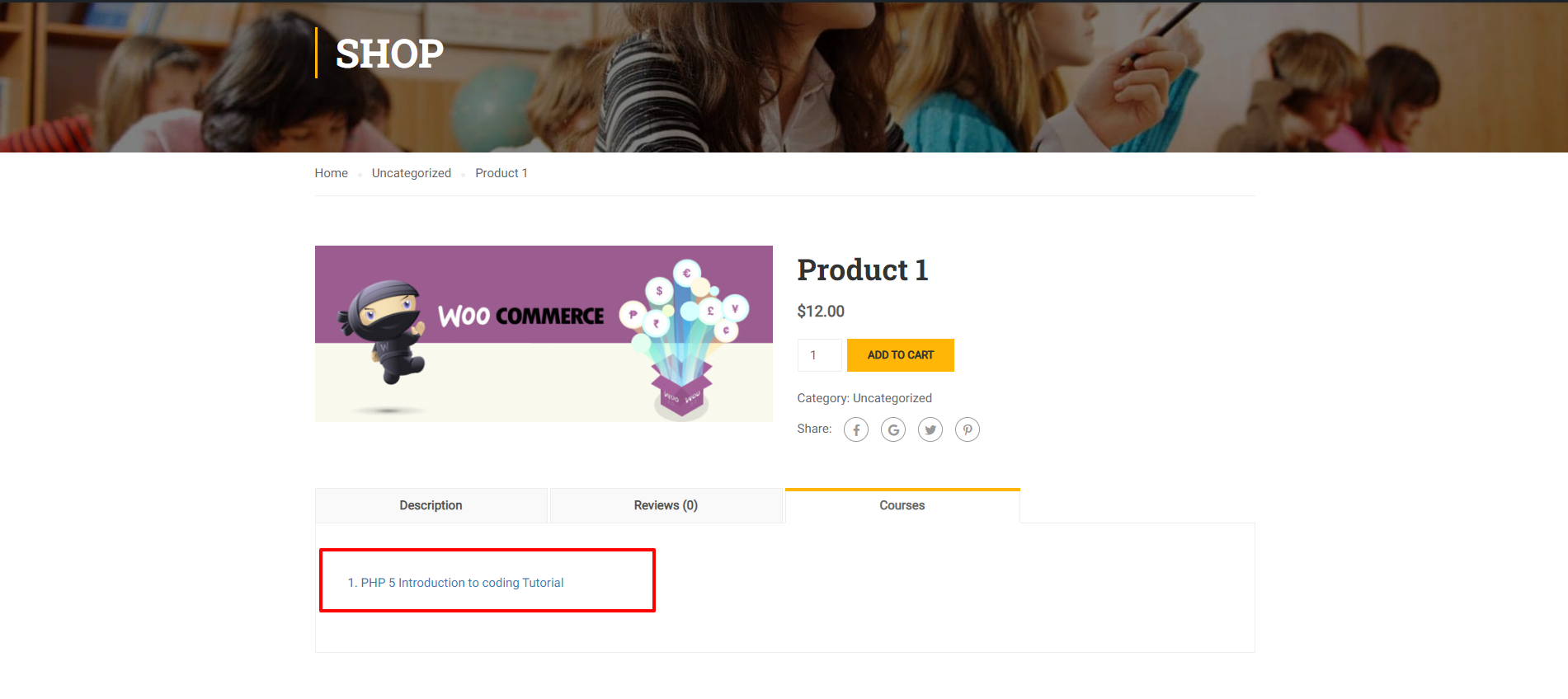
- You will see the product on the shop page now.
- In the “Courses” tab, you will see all courses which have been assigned to that product.
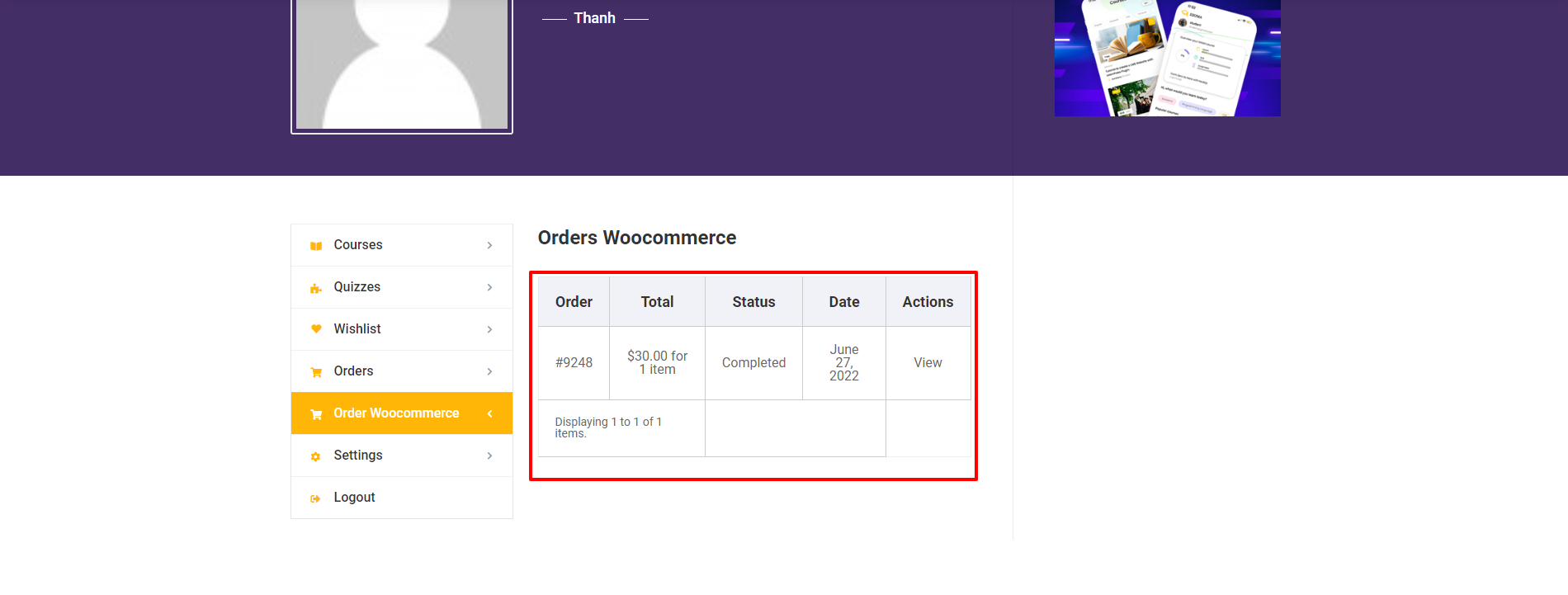
- After successful payment installation, go to your profile page -> select “Order WooCommerce” to see your order.